
This article describes how to toggle the white light on Uniview (UNV) cameras using the Uniview Local Application Programming Interface (LAPI).
Overview
You can control the lighting behavior of a Uniview camera by sending an HTTP PUT request to the camera's LAPI endpoint. This is useful for integrating camera lighting with third-party software or automation scripts, like our VMS.
Prerequisites
Camera IP Address: The local IP of your Uniview device.
Port: The HTTP or HTTPS port (default is usually 80 or 443).
Authentication: Requests must be authenticated according to your camera's security settings (Digest or Basic authentication).
Endpoint
Use the following URL structure to target the lighting control system:
PUT https://<cameraIp>:<port>/LAPI/V1.0/Channels/1/System/LightCtrl
Turning the White Light On
To enable the white light and keep it on for a specific duration, send a request with the parameters below.
Request Body
{
 "Type": 1,
 "Action": 1,
 "Mode": 2,
 "Interval": 60
}
Parameter Definitions
| Parameter | Type | Value | Description |
|---|---|---|---|
| Type | Mandatory | 1 | Specifies White Light. |
| Action | Mandatory | 1 | Sets the state to Enabled. |
| Mode | Conditional | 2 | Sets behavior to Always On. (Value 1 is Flashing) |
| Interval | Conditional | 60 | The duration (in seconds) the light remains active. |
Turning the White Light Off
To manually disable the light before the interval expires, or to ensure the light is off, use the following configuration.
Request Body
{
 "Type": 1,
 "Action": 0,
 "Mode": 2
}
Parameter Definitions
| Parameter | Type | Value | Description |
|---|---|---|---|
| Type | Mandatory | 1 | Specifies White Light. |
| Action | Mandatory | 0 | Sets the state to Disabled. |
| Mode | Conditional | 2 | Retains the mode setting (Always On) while disabling the action. |
Response Codes
200 OK: The request was successful. No data is returned in the response body.
401 Unauthorized: Authentication failed. Check your credentials.
400 Bad Request: The JSON body is formatted incorrectly or missing mandatory parameters.
Note: The
Intervalparameter is only required whenActionis set to1(Enabled). When disabling the light, the interval can be omitted.
DO HTTP(S) Request
You can integrate this API request directly into your VMS rules engine by utilizing the DO HTTP(S) Request action. This allows for seamless automation, as the request can be tied to any supported Event within the system, such as Soft Triggers, Analytics Events, or an external alarm input. By configuring the rule to send the specific JSON body to the LightCtrl endpoint upon a trigger, you can automate visual deterrents or provide auxiliary lighting for cameras exactly when an incident occurs.
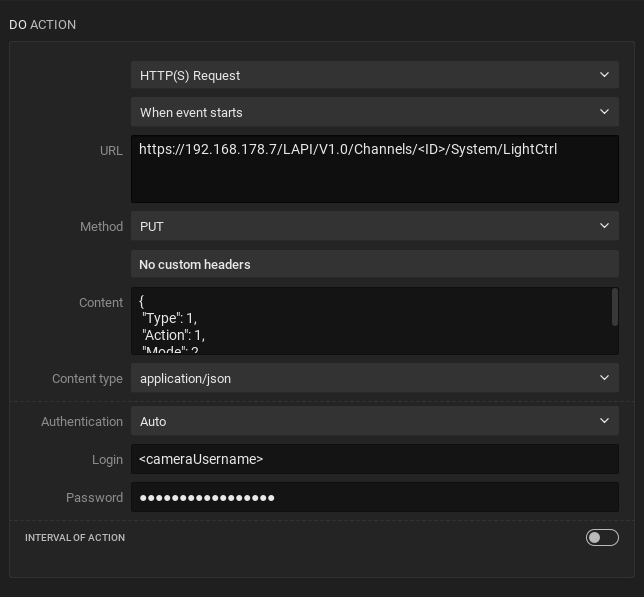
By utilizing Generic Events, you can scale your automation to trigger multiple cameras and actions simultaneously from a single event. When the VMS receives a Generic Event, the rules engine can be configured to trigger multiple rules with the DO HTTP(S) Request actions to an entire group of cameras at once. This multi-action capability ensures that a single trigger can activate white lights across a specific zone while concurrently initiating other responses, such as recording or PTZ presets, providing a comprehensive and synchronized reaction.
Comments
0 comments
Article is closed for comments.