Activate Lights on UNV Camera
Completed
Hi All,
Just wondering if anyone knows have to activate the alarm and flashing lights on a UNV camera? I was wondering that maybe we could do a HTTP(S) request to fire that on the camera but I don't have access to the UNV documentation for LAPI. My camera is the 8MP Double-Light Alarm Binocular Eyeball Network Camera- IPC3K28SE-ADF28KMC-DL-I0
Any help on how I would do this with a Soft Trigger would be great.
Mark
-

Hello Mark,
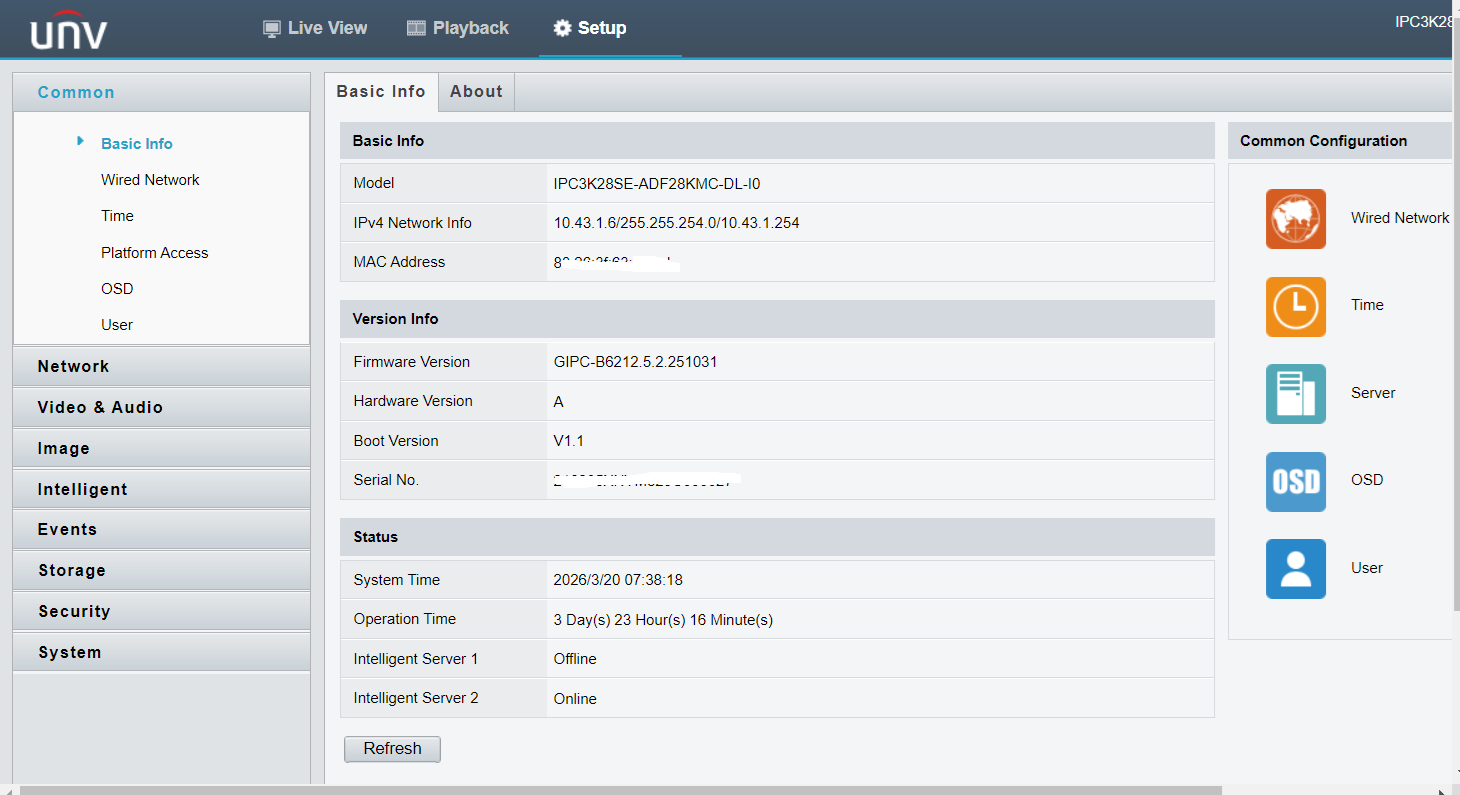
Do you have access the admin web page of this camera? If so, give us a screenshot and I'll try to guide you through it to find your HTTP endpoint.
0 -
-
Hi Mohammed,
Do you mean within NX Witness or the Actual camera web page?
 0
0 -
Yes, this is the screenshot I am looking for. I believe what you're looking for is under “Events” on the left side panel. Could you share with us what you have in there?
Edit: When you open the “Events” section, click on the “Trigger Actions” tab you should be able to find some sort of “On Motion Event” condition that turns ON the lights.
Alternatively, if there is a configurable HTTP request Trigger Action for the lights, we can make an event rule that calls the “Lights” HTTP endpoint when Nx detects motion in the stream.
0 -
-
Yes I can set the Alarm and Lights in the 'trigger actions' event area of the camera however I want to be able to trigger it from a soft trigger in NX and think maybe the only way to do this is via a HTTP but not sure how to do this or if we can?
0 -

Hi UNV Plugin Development Team
Could you provide some guidance to Mark Edwards?
0 -
If you can find that your camera has an HTTP endpoint to call in order to turn ON/OFF lights, use the event rule in the screenshot.
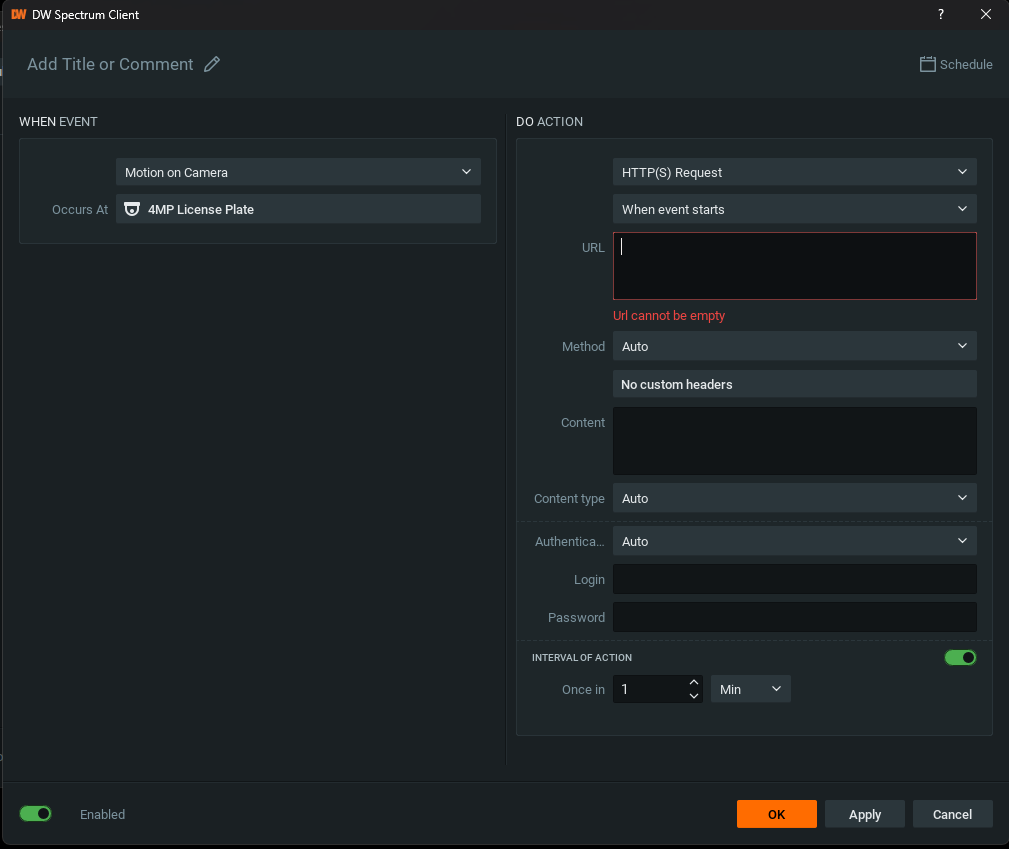
Unfortunately, I don't have a UNV camera around to test your exact case, but that's how I'd do it. Keep us posted regardless.
0 -
-
Yep exactly what I was saying, I know how to do an event rule and was specifically asking if anyone has experience with doing HTTPS requests to UNV cameras
-1 -

You can download the UNV camera development document from this link and search for the URL of the required features in the document for development.
https://global-open.uniview.com/home/API/device/IPC/documentation
0 -
Hi UNV Plugin Development Team,
I reviewed the API documents, and cannot find something specific to toggle the lights on and off.
I assumed I could retrieve data withGET /LAPI/V1.0/IO/OutputSwitches/BasicInfos, but the output didn't provide the right data:{ "Response": { "ResponseURL": "/LAPI/V1.0/IO/OutputSwitches/BasicInfos", "CreatedID": -1, "ResponseCode": 0, "SubResponseCode": 0, "ResponseString": "Succeed", "StatusCode": 0, "StatusString": "Succeed", "Data": { "Num": 0, "BasicInfos": [] } } }The basic info, returns as an empty array.
I'm using IPC2314LE-ADF28(40)KM-WL as a reference.
Can you tell us which endpoint to use theGETthe data, and toPOST/PATCHthe data?0 -
You can't download this unless you are an authenticated developer! However I did receive the document from Zacks but like Norman don't see any reference for the flashing lights or even the audible alarm.
Thanks for your help Norman
0 -
First, switch the fill light mode to white light through this interface. The specific field is "Mode", 1: white light; 2: Infrared; 6: Double light
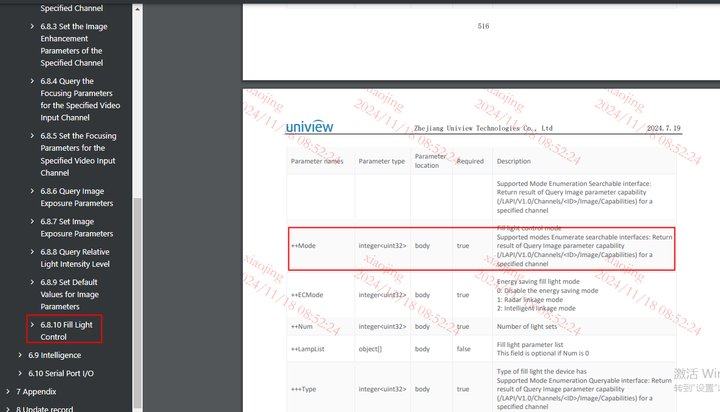
And then through this interface
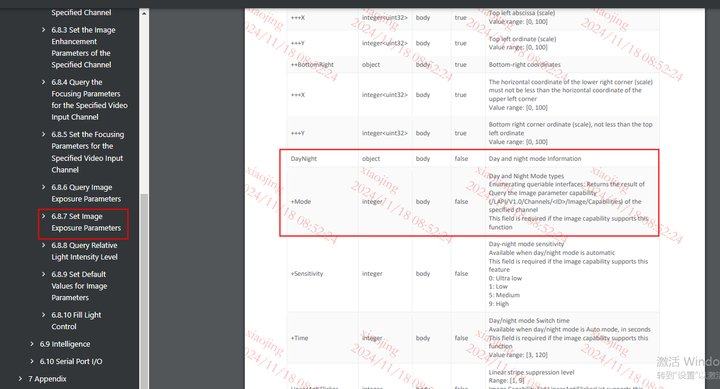
Switch the day night mode to night mode, and the fill light will turn on. Switch to day mode, and the fill light will turn off. The specific field is "Mode" in DayNight
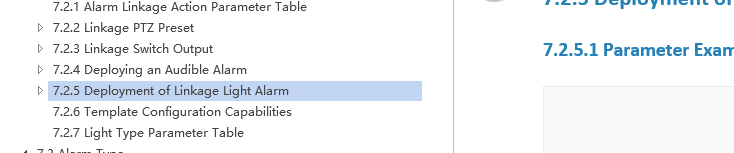
7.2.4 Interlocking sound alarm deployment, 7.2.5 Interlocking light alarm deployment
0 -
This makes no sense to me, how would I put this into a rule?
0 -
Hi Mark Edwards,
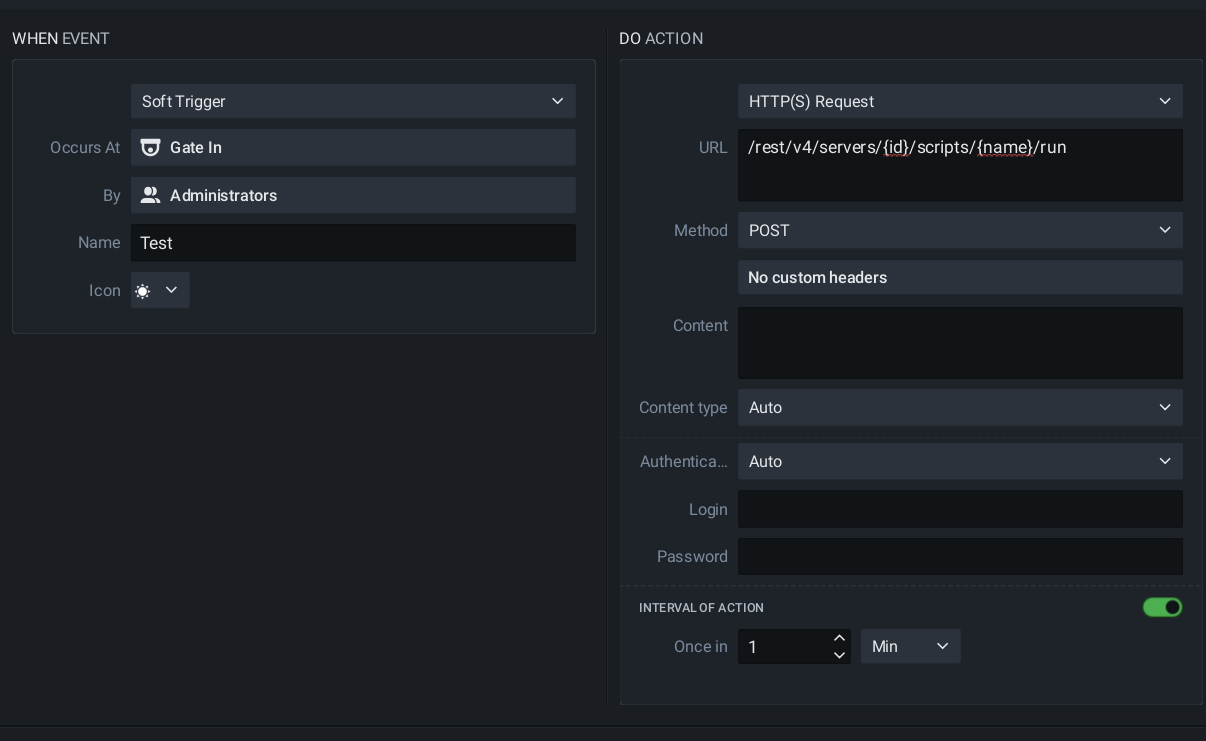
It kind of makes sense to me, and it assumes two requests need to be made, and that can be resolved with a simple script, and trigger the script with the
POST /rest/v4/servers/{id}/scripts/{name}/runrequest. What OS do you use?
Hi UNV Plugin Development Team
However, I don't understand why you need to switch to Night modus. It makes sense for IR lighting, however for White light, it potentially would ruin the colors in the image. Could you toggle the light as well when the camera is in Day mode? (I don't have a camera on hand to test.
Also, that being said; I don't see the same API as you reference to in the images when I navigate to:
https://global-open.uniview.com/home/API/device/IPC/documentationWith kind regards.
0 -
Hi Norman,
Yes I couldn't find the documentation mentioned in my doc either….I'm using both ubuntu and windows but not sure why that matters as I'm trying to do a https request. I'm not even sure where to start
 0
0 -
Hi Mark Edwards,
Since a single Soft Trigger is limited to one API request, and using two separate triggers might be clunky for your workflow, I’d suggest using a script to handle the sequence.
This script would manage the entire process: authenticating, executing the first API request, and then following up with the second. You can trigger this script via an API request (using the method I mentioned earlier), and your current rule, ideally utilizing an Internal HTTPS request, should work perfectly to kick things off.
That said, let’s wait for a moment while the UNV Plugin Development Team weighs in. Once they provide more guidence, I’ll be happy to provide all the details.
With kind regards.
0 -
You can try using the API below. This interface supports and only supports controlling the white light.
```markdown
# API Introduction## 1.1 Lighting Control LightCtrl
### 1. /LAPI/V1.0/Channels/<ID>/System/LightCtrl
| Attribute | Value |
|-----------|-------|
| **URL** | /LAPI/V1.0/Channels/<ID>/System/LightCtrl |
| **Description** | Turn the lights on or off manually |
| **Method** | PUT |
| **Input Data** | LightCtrlInfo |
| **Success Return Data** | None |
| **Note** | |
| **Status** | |---
## 1.2 JSON Block
### 1. LightCtrlInfo
**LightCtrlInfo JSON Block**
```json
{
"Type": ,
"Action": ,
"Mode": ,
"Interval":
}
```| Parameter | Requirement | Type | Description | Example |
|-----------|-------------|------|-------------|---------|
| Type | M | unsigned long | Light type<br>1: White light | 1 |
| Action | M | unsigned long | Light trigger action<br>0: Disabled<br>1: Enabled | 1 |
| Mode | C | unsigned long | Light flash mode; must be included when Action is 1:<br>1: Flashing<br>2: Always on | 2 |
| Interval | C | unsigned long | Light duration in seconds; must be included when Action is 1. | 60 |
```**Legend:**
- **M** = Mandatory
- **C** = Conditional (required when Action is 1)
```0 -
Thanks UNV Plugin Development Team
I hope I formatted the MD correctly:
API Reference: Lighting Control (LightCtrl)
Endpoint Overview
URL:
/LAPI/V1.0/Channels/<ID>/System/LightCtrlMethod:
PUTDescription: Manually turn lights on or off for a specific channel.
Request Body
{
 "Type": 1,
 "Action": 1,
 "Mode": 2,
 "Interval": 60
}
Parameter Details
Type (Mandatory | unsigned long)
The type of light being controlled.
- 1: White light
- Example: 1
Action (Mandatory | unsigned long)
The trigger action for the light.
- 0: Disabled
- 1: Enabled
- Example: 1
Mode (Conditional | unsigned long)
The flash behavior. Required if Action is 1. * 1: Flashing
- 2: Always on
- Example: 2
Interval (Conditional | unsigned long)
The duration the light stays active in seconds. Required if Action is 1. * Example: 60
Response
- Success: 200 OK (No return data)
- Legend: Mandatory (M), Conditional (C)
0 -
Hi Mark Edwards,
I'm not being able to verify it yet, however if I understand it correctly, this is how the Action should look like:
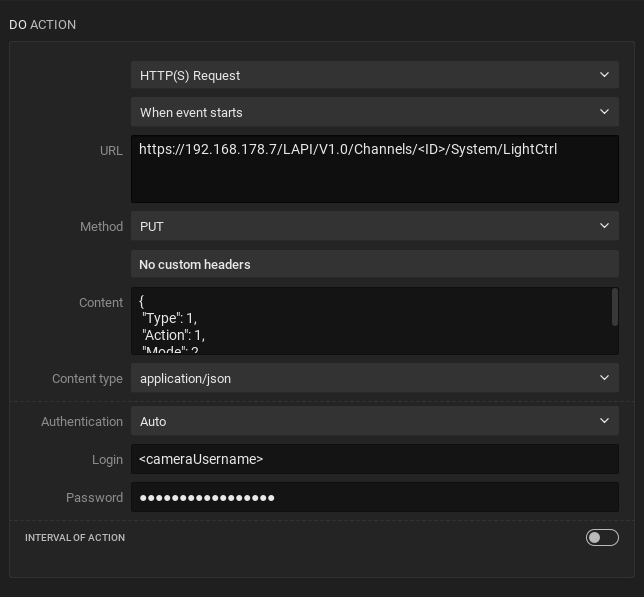
In this example, I used the body as listed in the API example, as shared by UNV Plugin Development Team :
{
 "Type": 1,
 "Action": 1,
 "Mode": 2,
 "Interval": 60
}
This mean a white light is controlled (type = 1), the light is enabled (action = 1), the light is always on (Mode = 2), and it stays on for 60 seconds (interval = 60)
This request was to turn the lights on.
To turn the lights off, you can use the same rule, however with a slightly different body:
{
 "Type": 1,
 "Action": 0,
 "Mode": 2
}
Please let us know if that works for you.
Have a great weekend.
0 -
Thanks everyone,
Thanks Norman for showing me how to format the URL FYI I used 1 for <ID> and it works and the light comes on for 60 seconds
https:/192.168.178.7/LAPI/V1.0/Channels/1/System/LightCtrl
However I really wanted to flashing red and blue lights as I wanted to trigger a deterrent via a soft trigger….hopefully one day the UNV Plugin Development Team will provide this?
Mark
0 -
Cool!! I have no clue what you need to do to trigger the red/blue LEDs, but I would try a different numbers for
“Type”an"Mode": 1to make it flash.0 -
Norman,
Thanks
Unfortunately they said it only supports the white light
This interface supports and only supports controlling the white light.
0 -
Hi Mark Edwards,
For future reference, I created a short Knowledge Base article about this topic:
https://support.networkoptix.com/hc/en-us/articles/39701793920407-Controlling-Uniview-Camera-White-Lights-via-a-Do-HTTP-S-request0
Please sign in to leave a comment.
Comments
22 comments