2 Licences 1 Cameras - help
Answered
Afternoon,
I've got a series of HIKMICRO HM-TD2628-3/G1/T3A thermal cameras.
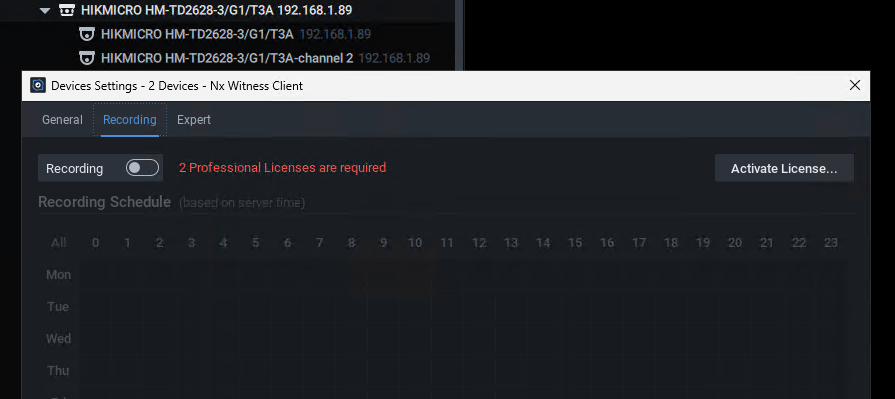
It's a dual spectrum camera and it's showing both channels, but it's asking for 2 licences per camera. Do you have an updated JSON file or anythingI can change to make this 1 licence?
thanks,
-

Hi Glen Rippon,
Thank you for reaching out to us.
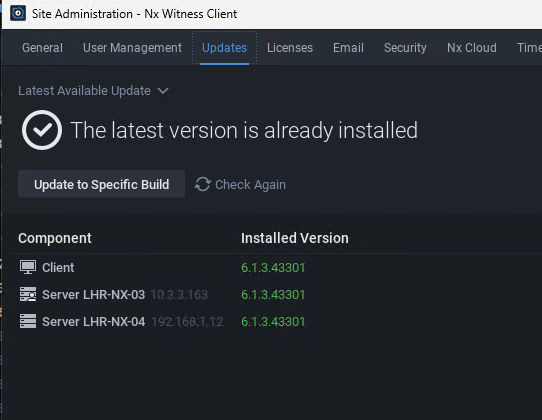
Please update to 6.1.3.43301, and the reported issue should be resolved.
Best regards.
0 -
Hi norman,
I'm on 6.1.3.43301 and it's the same. I've attached a few screenshots for you.
Rgds,
0 -

I have a similar situation with a Luminys PTZ camera with a pano camera built in. It is asking for a license for each sensor whereas on previous installations on other sites using the same type of camera but Hikvision it only used one license.
0 -
Hi Glen Rippon,
That is a bit unexpected.
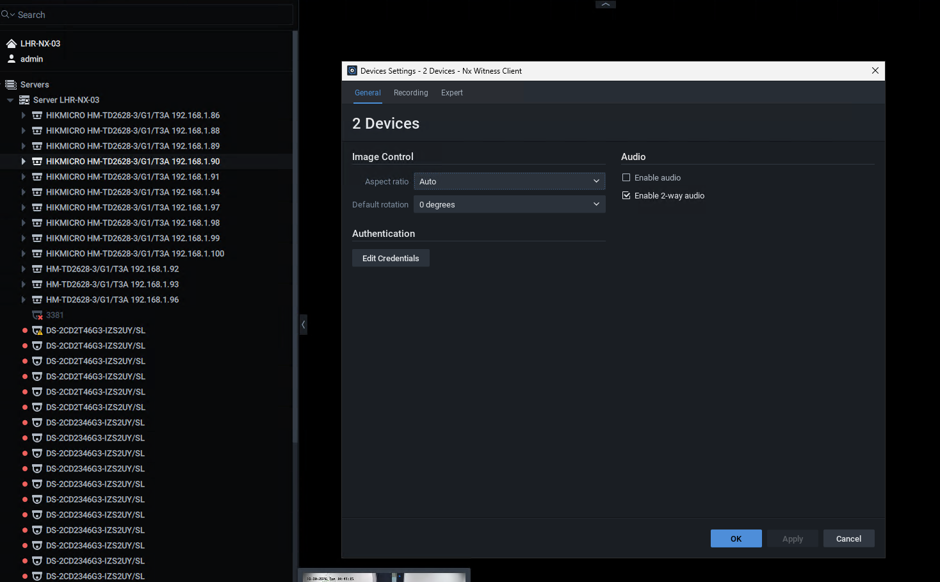
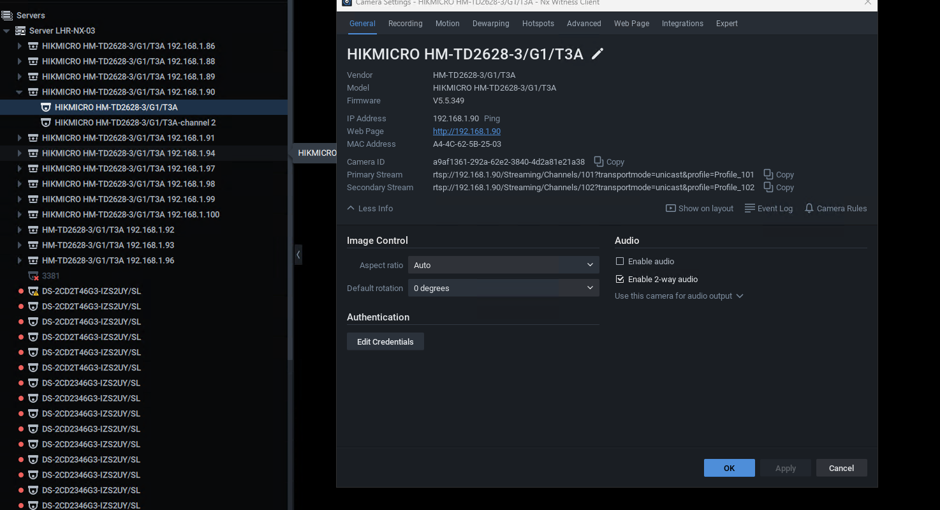
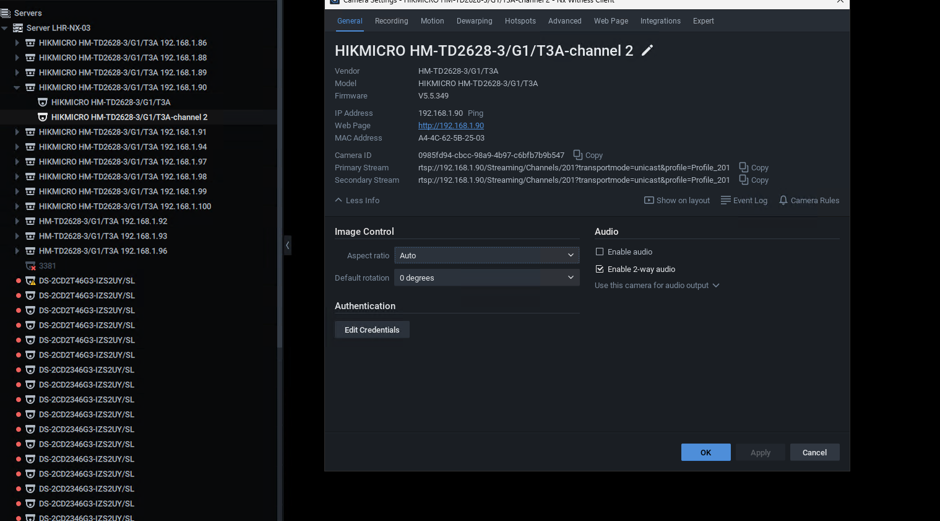
In order to address the reported issue, could you please provide a screenshot of the Camera Settings menu in the Desktop Client, specifically the General tab, where the Vendor and Model details are clearly visible?
Once we have this information, we will be able to create a temporary fix, which will be included in our source files once confirmed.
Thank you for your assistance.
Could you do the same, however preferably in a separate topic, since it is different camera?
Thank you.
0 -

Hi Norman,
I'm replying on behalf of Glen. please see below screenshots.
 0
0 -
Hi Ryan McMaster / Glen Rippon,
I see why the patch fails. The Vendor and Model names were switched.
I have taken the necessary adjustments to ensure that it is fulfilled.Please follow the steps as described below:
- Stop the mediaserver application
- Download the file through THIS link, and paste the resource_data.json file in the attachment at the following location:
For Windows:C:\Program Files\Network Optix\Nx Witness\MediaServer
For Linux:/opt/networkoptix/mediaserver/bin/ - Now start the mediaserver application again.
To stop and start the media server, please do it as follows:
For Windows:
Open the task manager, select tab ‘Services’ find the Mediaserver application, right-click and select; Stop or Start
For Linux:
Open the terminal (Ctrl+Alt+T) and enter the following command to stop the Media Server:
sudo systemctl stop networkoptix-mediaserver.serviceand the following command to start the Media Server:
sudo systemctl start networkoptix-mediaserver.serviceCould you please confirm that this resolves the issue? Once we receive your confirmation, we will proceed with the necessary updates, and we will be adding it to a future patch.
Best regards.
-1 -

Hi Norman,
could you tell me if this file work as well with this camera HM-TD2638-8/G1/T3Y et HM-TD2638-4/G1/T3Y?
Thank you
0 -
Hi Antony DOIREAU,
This file should work for both mentioned models.
Best regards.
0
Please sign in to leave a comment.
Comments
8 comments