Any guide for integrating Axis door station like A8207-VE or A8105-E into NX Witness via call button?
Answered
Hello all,
I have a Axis A8207-VE door station unit and I am currently trialing the free version of NX Witness. I want to integrate the door station unit into NX Witness so that when the call button is pushed on the door station, then NX Witness client on desktop and NX Witness mobile app both ring and I can answer the call and open the door.
NX Witness automatically detected and I then added the door station unit into the client as a camera witness and it appears ok as well and I have setup NX Witness cloud account as well. I am trying to figure out which event to create on the Axis door station unit so when the call button is pressed, both the NX mobile and desktop client call me. If there is such a guide for Axis A8105-VE then that will do as it should be similar setup.
Thanks
-
Official comment

Hi Karan,
In the Axis A8207-VE you go to the tab Preferences and you select Additional device configuration.
A new tab will open. Here you select Events and Action Rules. Then you select the desired input and click on Modify.Under Actions, you select under type Send Notification and New Recipient. A new window opens. The Type should be set to HTTP.
In the URL you set the URL of the generic event like:
http://<server-IP-address>:7001/api/createEvent?source=<anything-unique>&caption=<anything-unique>&description=<anything-unique>&metadata={"cameraRefs":["<cameraId>"]}
For the Login Credentials, you add the Username and Password of the relevant server.
When this is set up correctly and the corresponding rule is made in Nx Witness, you should receive such even in Nx Witness when you press the Test button.The rule in Nx Witness should be as follow:
Event = Generic Event with the identical Source and/or Caption and/or Description.
In this case you create the following rules with the same Event, but with different Actions.Rule 1 --> Event = Generic Event / Action = Show on Alarm Layout
Rule 2 --> Event = Generic Event/ Action = Repeat SoundAnd in order to open the door, you create another rule:
Rule 3 --> Event = Soft Trigger / Action = Camera Output (if this is reconised in Nx)
or:
Rule 3 --> Event = Soft Trigger / Action = Do HTTP request and add the API call to trigger the output of the Axis device.More information regarding Generic Events can be found in this support article.
For mobile. At this stage, we do expect to add push notification to the Nx Mobile Application, but at this moment, until we release the push notification, you could use 3rd party applications to achieve this.
We know people had success with Pushover.net and another user has created the NxBot for Telegram, although this can be modified for other open-source applications as well. -
Thanks Norman for the writeup. There are subtle changes in the A8207-VE menu btw on how to to access 'Events' Menu' which is now straight forward and this menus is just listed as 'Events' under main web page of the door station unit when you web on to it.
I got as far as setting the new URL under New Recipient which is below using your string example and I used
I then added my NX server login details in username and password box and click 'Test' but then I get an error prompt which says 'The URL seems invalid. Please check it and try again' so I am stuck at this stage now. Any ideas how to go past this error?
0 -
Your URL is correct. When I use it, I get the following reply:
{"error":"0","errorString":"","reply":null}The only things I modified were the server IP address and the cameraId.
My URL looked like this:http://192.168.178.56:7001/api/createEvent?source=nxvmscall&caption=nxvmscalling&description=nxvmscaller&metadata={"cameraRefs":["2ab985a4-b807-7d2f-fc2f-9e01bbdac88d"]}Did you add the correct source, caption, and description in Nx Witness?
0 -
Thanks Norman. I did not had the Generic events created inside NX Witness for first 2 rules that you specified. After creating them and trying again, I still however get the invalid URL error though.
1. I made sure that first 2 rules are correct as you have specified and selected the Axis as my source camera
2. I made the source, caption and description name exactly the same which is 'nxvmscall' without quotes
3. I made sure that in windows and also inside nxwitness, I have a dedicated login created with admin privilege's in windows OS and also nxwitness as 'doorstation'
Anything else you can think of? I have not activated the trial license yet, I am still running the free version if that makes any difference.
My URL now looks like below. 192.168.1.63 is NX server IP
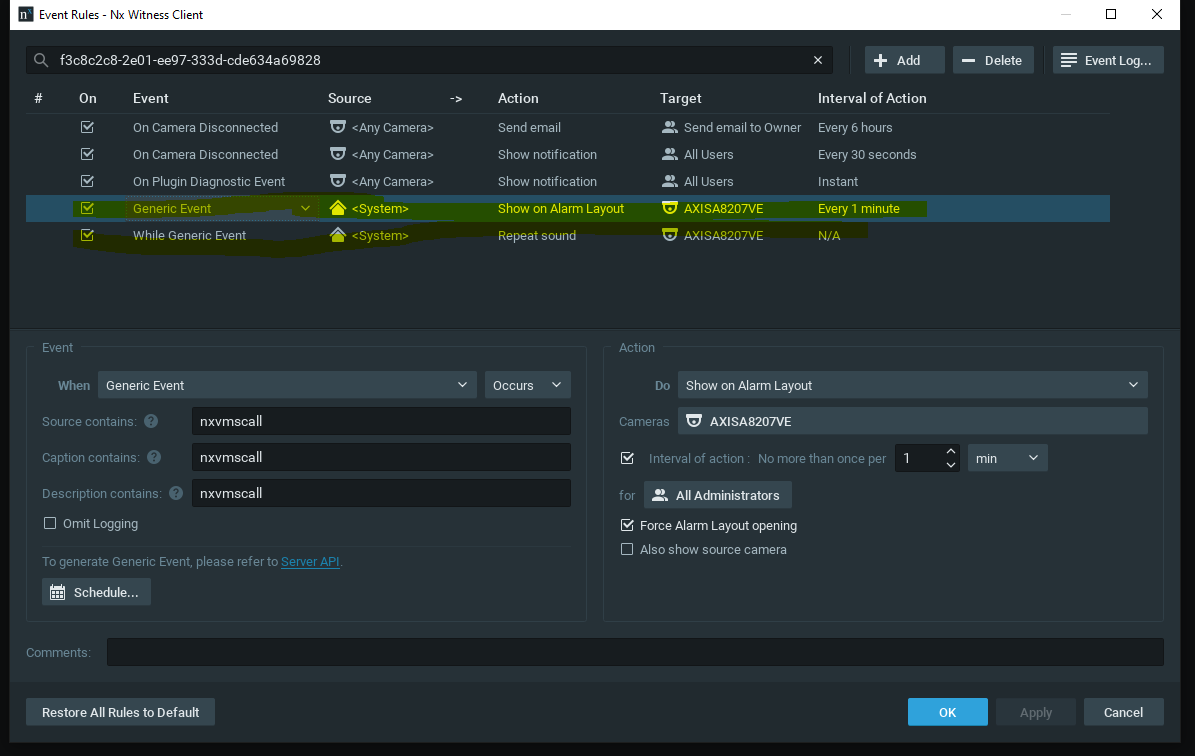
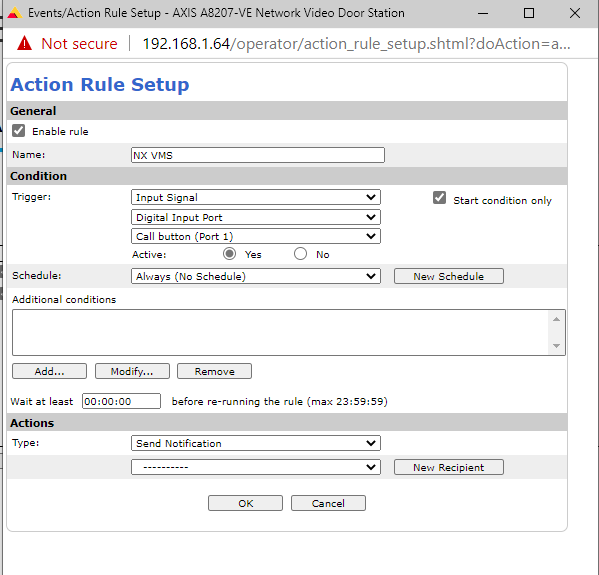

Edit - If I just use the server IP and it's port then the test is success as shown below. It's clearly not liking something in rest of the URL afterwards.
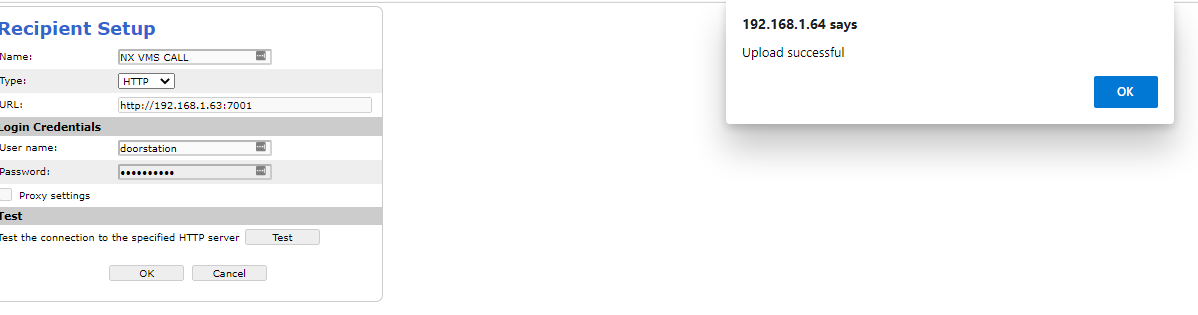
and if I enter the full URL above in a browser window, I get the below and sure enough the alarm sound went off as well that was configured inside nxwitness
 0
0 -
Hi Karan,
Your URL was good also the reply in the browser was good.
{"error":"0","errorString":"","reply":null}This indicates there are zero errors and also the alarm can be received in Nx.
If the URL was false, the URL should reply like such for example:
{"error":"2","errorString":"At least one of values 'source', 'caption' or 'description' should be filled","reply":null}It depends, of course, a bit of the mistake that was made, but the first reply is the desired reply.
Regarding the error in Axis. If you ignore it, does it still work?
0 -
Hi Norman, The Recipient Setup window does not lets me proceed any further if I click OK button if I try and bypass the Test button error. Pressing the OK button displays the same 'Invalid URL' message as above that I showed in the screenshot.
0 -
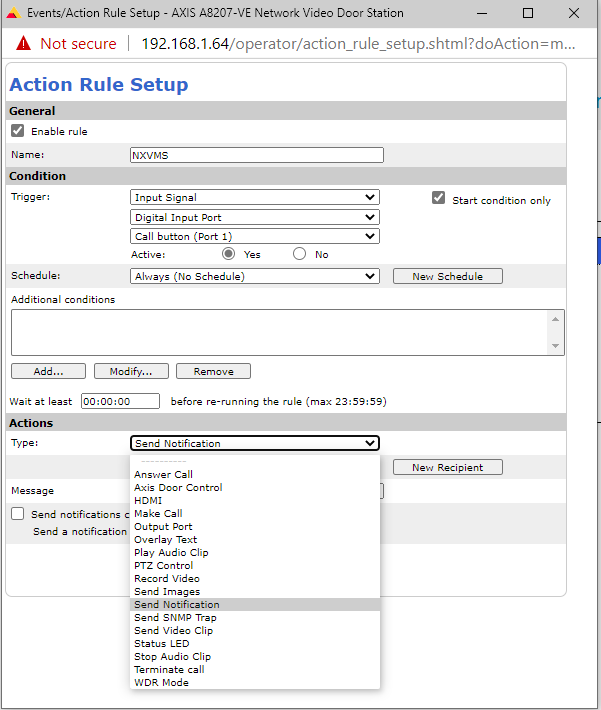
It is letting me add a TCP connection ok.
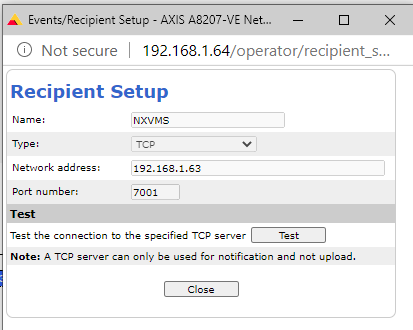
Is there any events integration I could do between Axis and NX via the TCP with the below Axis events menu?
 0
0 -
Success! Norman, what I tried is a shorter URL path and remove the metadata and camera ID part from the 'http recipient' as shown below.
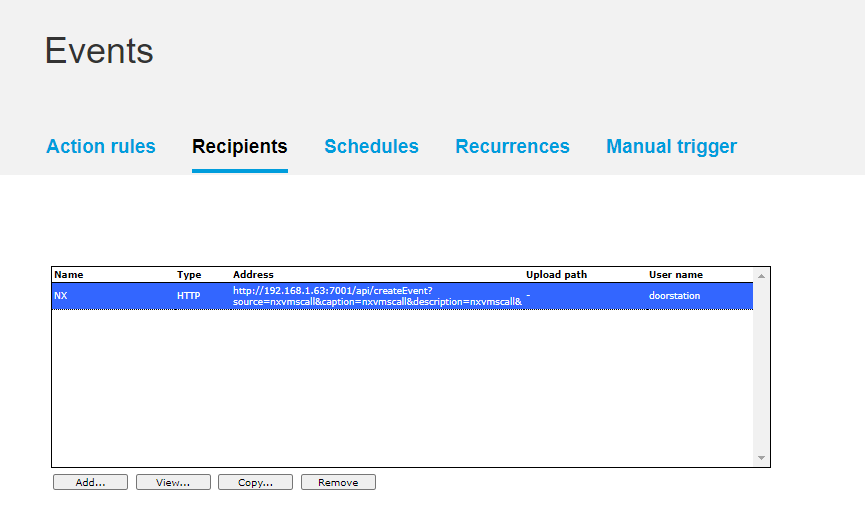
Once I tested above which invokes the alarm in NX Witness, I then went back to my 'Action rules' window from first step which now shows a custom parameter window and looks like below.
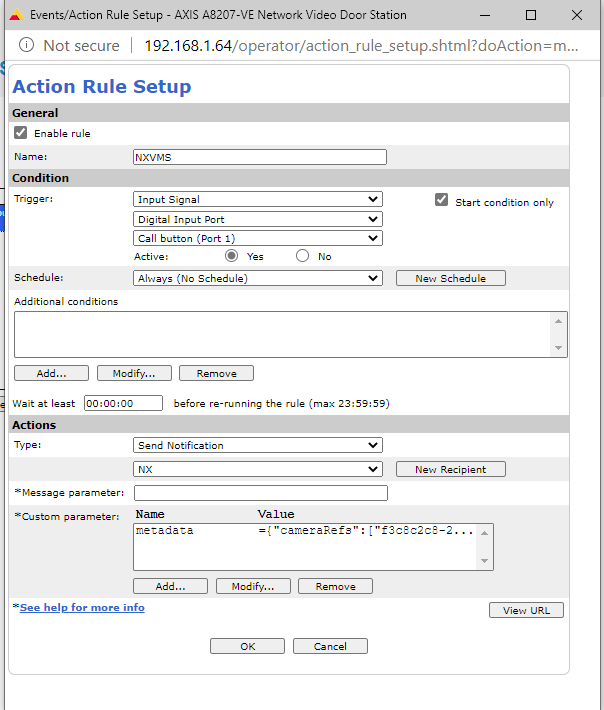
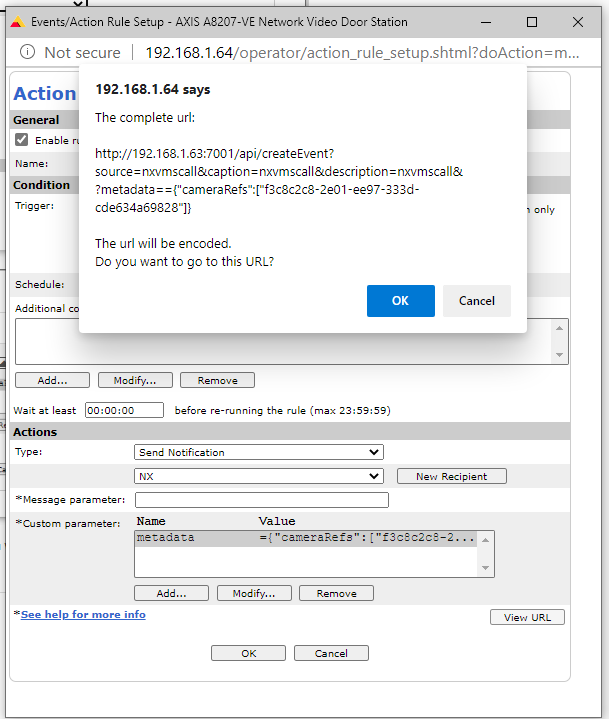
In the custom parameter window, because the 'Name' portion also gets added in the URL when you look at it, I just added 'metadata' for the name followed by rest of camera id etc in actual parameter to form the full URL as shown below.

and the final URL looks like below which works :)
Thanks for your help Norman! Now time for me to explore more of NX Witness and fine tune this event as if I press the call button on Axis unit, alarm goes off which is good but if I also press it again to hang up on calling, it goes off again.
 0
0 -
Your welcome.
In general, when people want to finish the call they just close the camera of click another to shut off the audio.0 -
Did you get this working? I'm not able too.
Thanks!
0 -
Hi Mitch. Yes it is working fine still. My last post has the answer with screenshots showing what changes needed to be done.
0 -
Yup, i can't see where you add Custom Parameters
 0
0 -
Is your Axis unit firmware up to date?
0 -
yup, 1.97.2.2. what version you running?
0
Please sign in to leave a comment.
Comments
14 comments