Display "No signal" with NX Client but it works fine with Onvif Device Manager (ODM)?
Answered
Hi team.
I have added thermal camera successfully to NX, but it keeps loading and show "NO SIGNAL" on display. I have test with ODM, and it works fine. Below are the screenshots include the camera state on NX Client and ODM. I took the tcp packets from Wireshark, where NX IP is 192.168.1.7 and Camera IP is 192.168.1.5, in case you need it.
On NX:
First it shows loading state
Then "NO SIGNAL"
"Diagnostics"
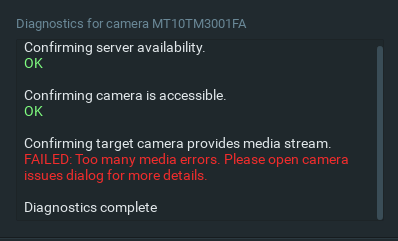
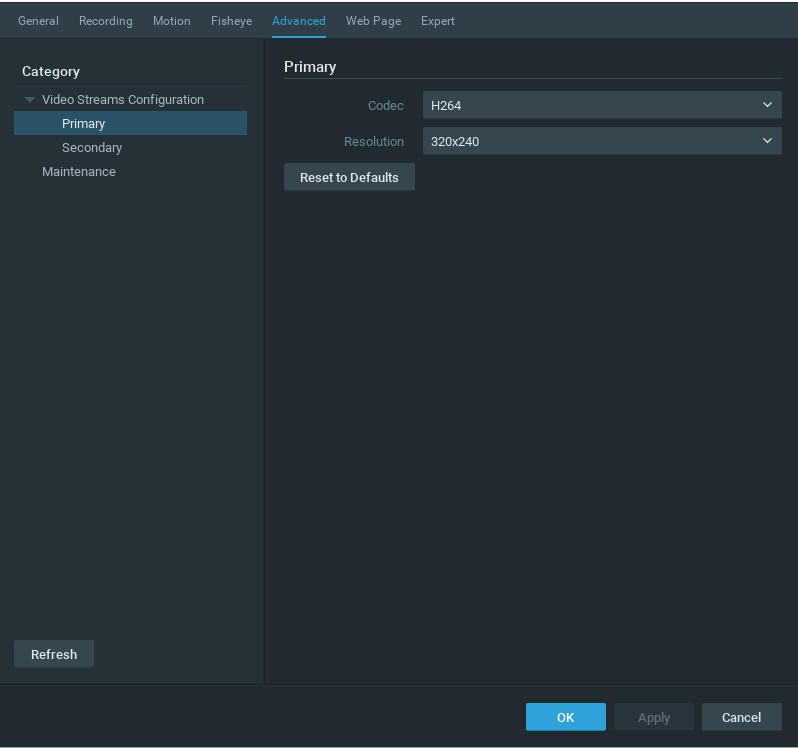

Camera detail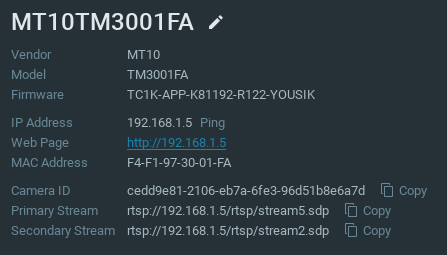 Server logs:
2021-03-22 20:15:18.323    104    INFO QnOnvifStreamReader(0x2190c92b770): got stream URL rtsp://192.168.1.5/rtsp/stream2.sdp for camera http://192.168.1.5/onvif/device_service for role 2
2021-03-22 20:15:19.924   126c    INFO QnOnvifStreamReader(0x2190c921640): got stream URL rtsp://192.168.1.5/rtsp/stream5.sdp for camera http://192.168.1.5/onvif/device_service for role 1
2021-03-22 20:15:21.741   126c WARNING QnMulticodecRtpReader(0x2190c922030): Can't open RTSP stream [rtsp://192.168.1.5/rtsp/stream5.sdp], SETUP request has been failed
2021-03-22 20:15:21.743    104 WARNING QnMulticodecRtpReader(0x2190c92c160): Can't open RTSP stream [rtsp://192.168.1.5/rtsp/stream2.sdp], SETUP request has been failed
On ODM:
Live video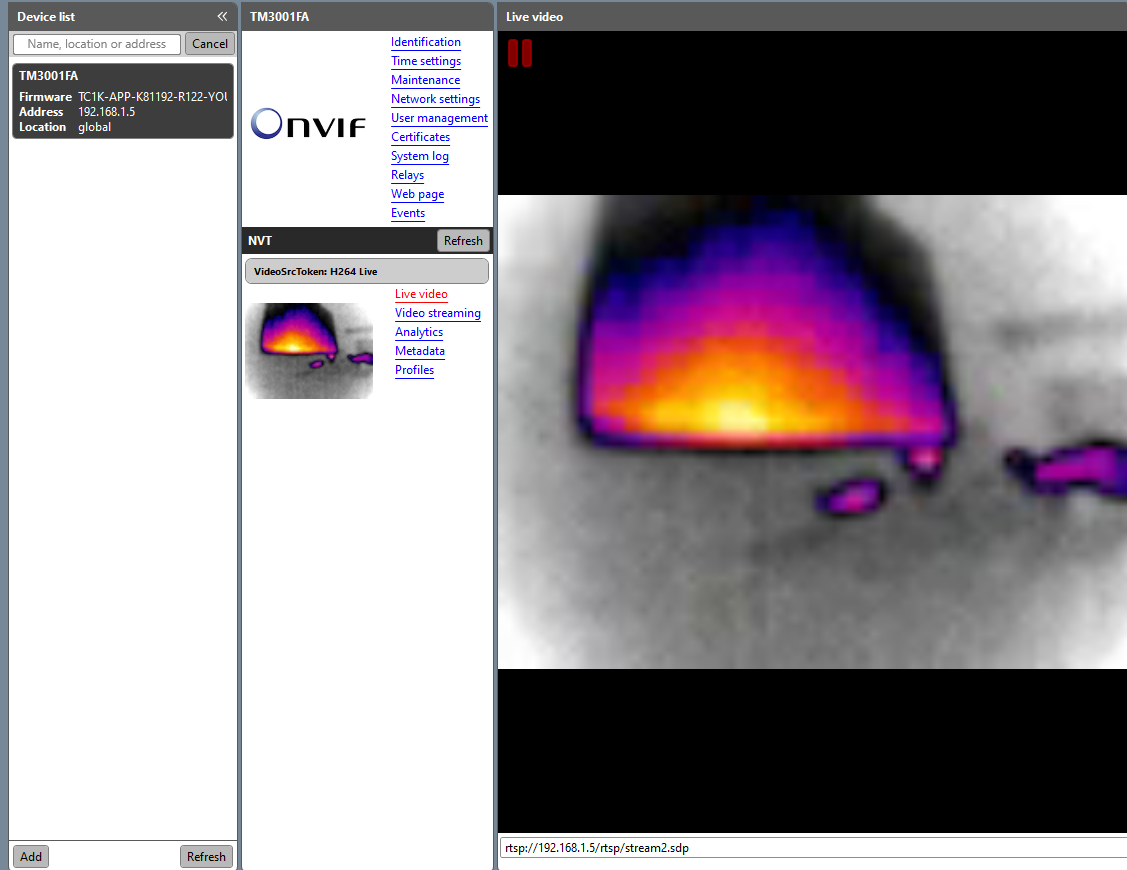
Primary stream

Secondary stream
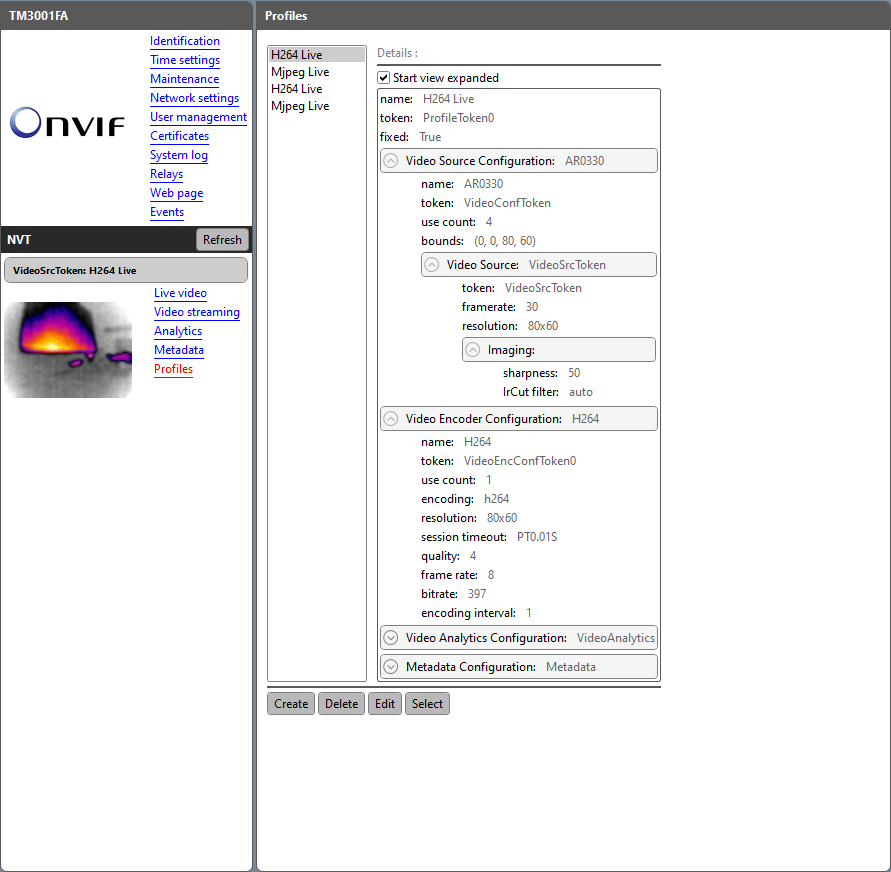
Tcp packets from Wireshark:
https://drive.google.com/file/d/137GCSJlrgLqd5H6xRS3P9dWmRWw9X8m5/view?usp=sharing
Please tell me how to fix
Appreciate your help
Thanks
Nhat
-

Hi Nhat,
Looking at the Wireshark information, the camera is rejecting standard ONVIF requests from the mediaserver. Most likely, it is a camera/firmware issue.
Also, if this is not a supported vendor for integrated thermal events, it's possible that those would not work right now either.
- Can you provide the manufacturer details - vendor and model of this camera?
- Make sure that Nx Witness is updated to the latest patch.
- Update camera firmware to the latest version / default the camera
- As a possible workaround, disable camera optimization:
- Remove / add the camera to the system again.
For the whole system:
- Main Menu > System Administration > General tab - Uncheck
"Allow system to optimize camera settings"
For just the camera:
- Camera Settings > Expert Tab - Check
"Keep camera profile stream and settings"
0 -
Thank you for your support. Here are the information that you need.
1. Vendor: emTake, model: MT10
2. I have updated to the latest patch recently, 4.1.0.31398
3. I have checked. This is also the latest camera version, either
4. No way works, I have tried many times
I've got the tcp packets between the camera and ODM, when I connect and open "Live video". You can use it for comparison
https://drive.google.com/file/d/197qsfprAhK_hmU_Ws9nS8myrkdaCZvqV/view?usp=sharing
0 -

Hi @...,
It seems like the issue will require further investigation, as a result, we would like to connect remotely to your camera with the reported issue in order to resolve the problem as soon as possible. Would you please port forward the camera and share its details with us? If you agree, I'll forward this ticket to our ticket system for the sensitive information provided.
Thank you.
0 -
Hi Wendy Chuang,
Please confirm to forward this ticket to your ticket system. I'll send you the IP information of camera then.
Thank you.
0 -
Hi @...,
I've forwarded the post to the ticket system. Please check your mailbox and reply with the requested info to us directly.
Thank you for your cooperation.
0
Please sign in to leave a comment.
Comments
5 comments