NX VMS/Web Portal - Ability to restart
Answered
Hi,
A customer of ours experienced a power failure recently. Before the power failure, occasionally, he would login to the VMS portal to restart the server. Login - > Servers -> Restart.
After the power failure, the button that allowed him to restart has disappeared and is only available to the owner of the server (Us)
He has the administrator role.
Why is this? Has something changed? Are there patch notes? Is this now an explicit permission?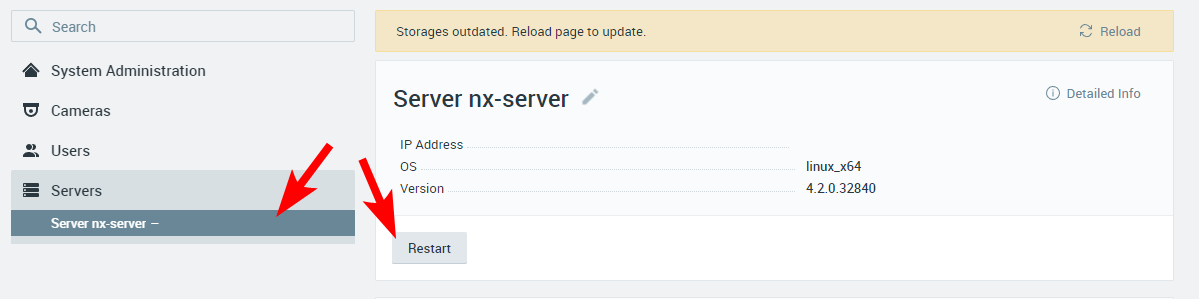
-

Hi @...,
I have verified this behavior in the latest release Nx Witness 4.2.0.32840, and in the latest available patch, 4.2.0.34125, and in both cases the owner and the administrator are able to restart the Nx Mediaserver via the WebAdmin page. When I lower the access level to Advanced User, I'm not able to restart the Nx Mediaserver via the WebAdmin page, which is expected behavior.
Please check the access rights for that particular user.
If we are talking about the Nx Cloud page, you're correct, only the owner can restart the mediaserver remotely. This has been changed recently, but I started an internal discussion about this behavior.
0 -
The user is confirmed to have the administrator role.
We needed the admin to have the ability to restart it...if we can't do that we probably need the ability for it to be given out to people. Admins should be able to do that, not just the owner...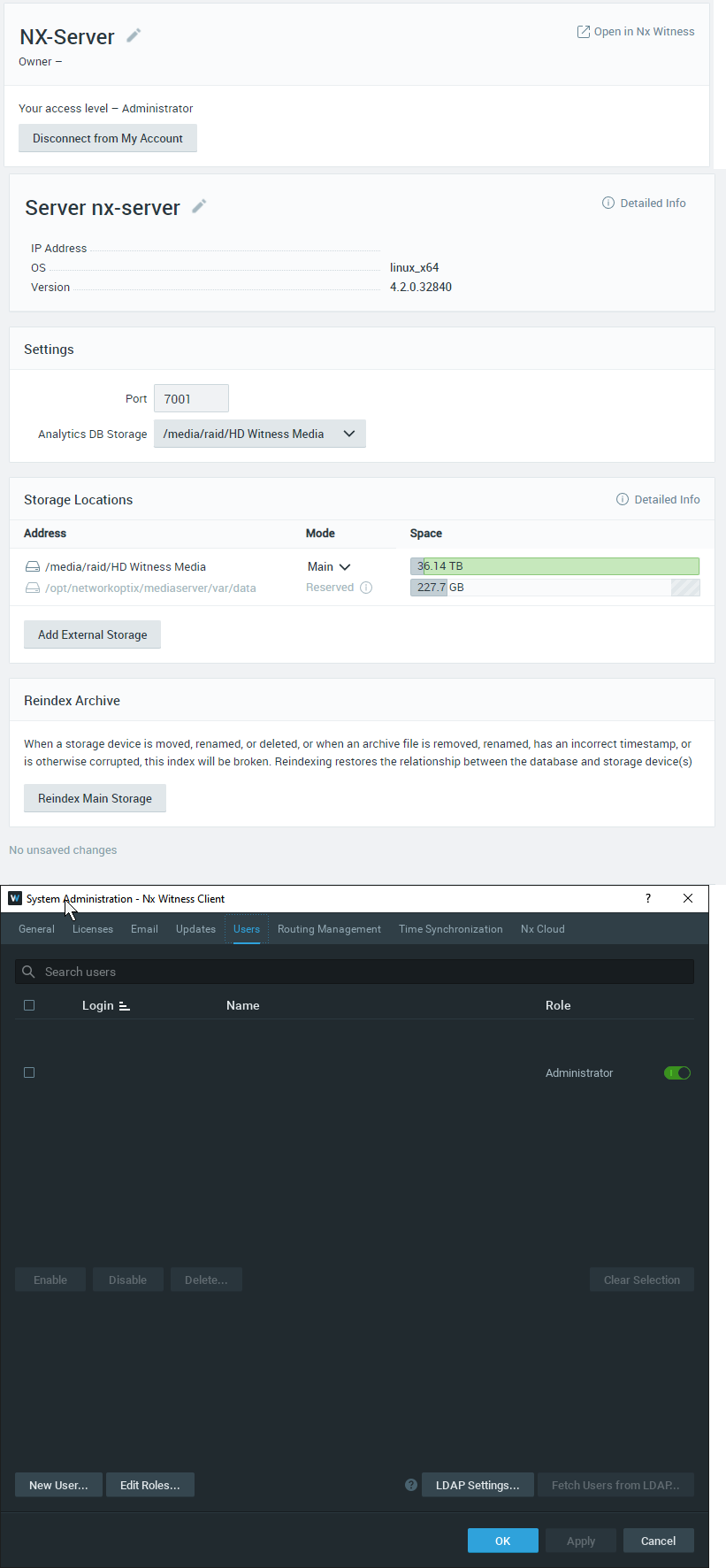 0
0 -
Hi @...,
The page you linked to is the Nx Cloud page, while I understood the Nx WebAdmin.
The feature was recently (last week) removed on the Nx Cloud page.It is also planned to be changed in the Nx WebAdmin page, but I am discussing it internally, since I share the same opinion as you, admins should be able to restart the mediaserver. Perhaps there is a very valid reason to remove this feature, typically, things don't change without a reason. I'll let you know, once I know more.
In the meantime, the restart can be done via SSH or connecting to the Nx Admin through a proxy connection as follows:
https://<cloudId>.relay.vmsproxy.com/static/index.html#/settings/server
For example:
https://3770508e-569a-423b-a61a-a85abb0ffff2.relay.vmsproxy.com/static/index.html#/settings/server
To obtain your Cloud System ID please do the following:
-
Open your browser and navigate to the Cloud Portal (for instance http://nxvms.com)
-
Log in to your Cloud Account.
-
You will see the portal and the system tiles on your screen.
-
Click on the System that you want the Cloud System ID of.
-
The Cloud System ID is found in the URL and appended to “systems/”
Example:
https://nxvms.com/systems/3770508e-569a-423b-a61a-a85abb0ffff2
Cloud System ID is : 3770508e-569a-423b-a61a-a85abb0ffff2
0 -
Please sign in to leave a comment.
Comments
3 comments