Camera timestamp
Answered
Hi,
Some of our cameras have a timestamp in the top corner, while others don't. In addition, most of the timestamps are drastically wrong. I've taken over management of Nx Witness at my school and I'm not sure how these timestamps were put on the cameras that have them, so I'm not sure how to change them so they're accurate (i.e. showing the current time) or how to add them to the cameras that don't have them. Does anyone know how to do this so I can fix it up?

Thanks,
Ash
-
These timestamps and camera name are probably coming from the actual camera. You will need to login to the camera and change / disable them yourself. I would also suggest setting an NTP server to keep the time current.
1 -

Hi @...,
@... is right, such information comes from the cameras. Based on the screenshot, I assume these are Hikvision camera or OEM of Hikvision.
In that case you can enable/disable the onscreen timestamp as follows:

- Navigate to the webpage of the camera
- Navigate to the Configuration menu
- Navigate to the Image menu
- Navigate to the OSD Settings menu
- Select the information you want in the display
- Select the preferred formatting or Time and Date
- Select the way it should look and where it should be positioned
- Add additional texts (optional)
- Hit the Save button
That being said, personally I always disable any in-camera OSD since I find them annoying since they could cover something important, or they could cause motion detections.
Also, the information is present in the interface of the Nx Witness Desktop client as well.

In the example above I displayed the same camera, below Live and on top in Playback mode.
Also, when exporting footage, you can add a timestamp in various formats (and an image, additional Text, and additional Info) in any position and size of the image, so there is no need to have the time in the OSD of the cameras:
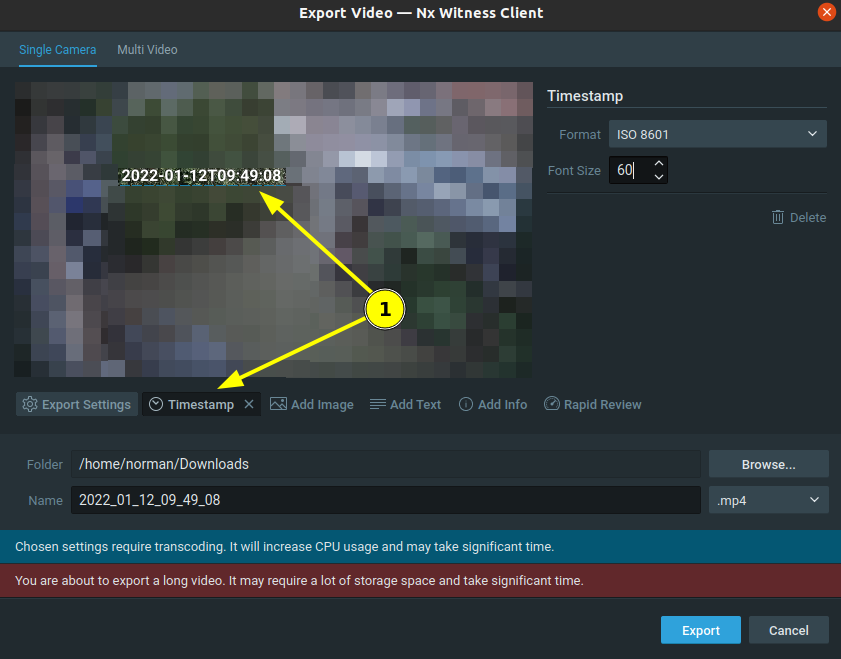
Regarding time; cameras will be synchronized with the VMS by default when the deviation becomes too much (>1000 ms). If you want, you could configure the same NTP server on each camera and in the OS where the Nx Witness mediaserver is running upon.
0
Please sign in to leave a comment.
Comments
2 comments