How to use reserved drive for analytics DB storage which is the only SSD
Completed
Hi,
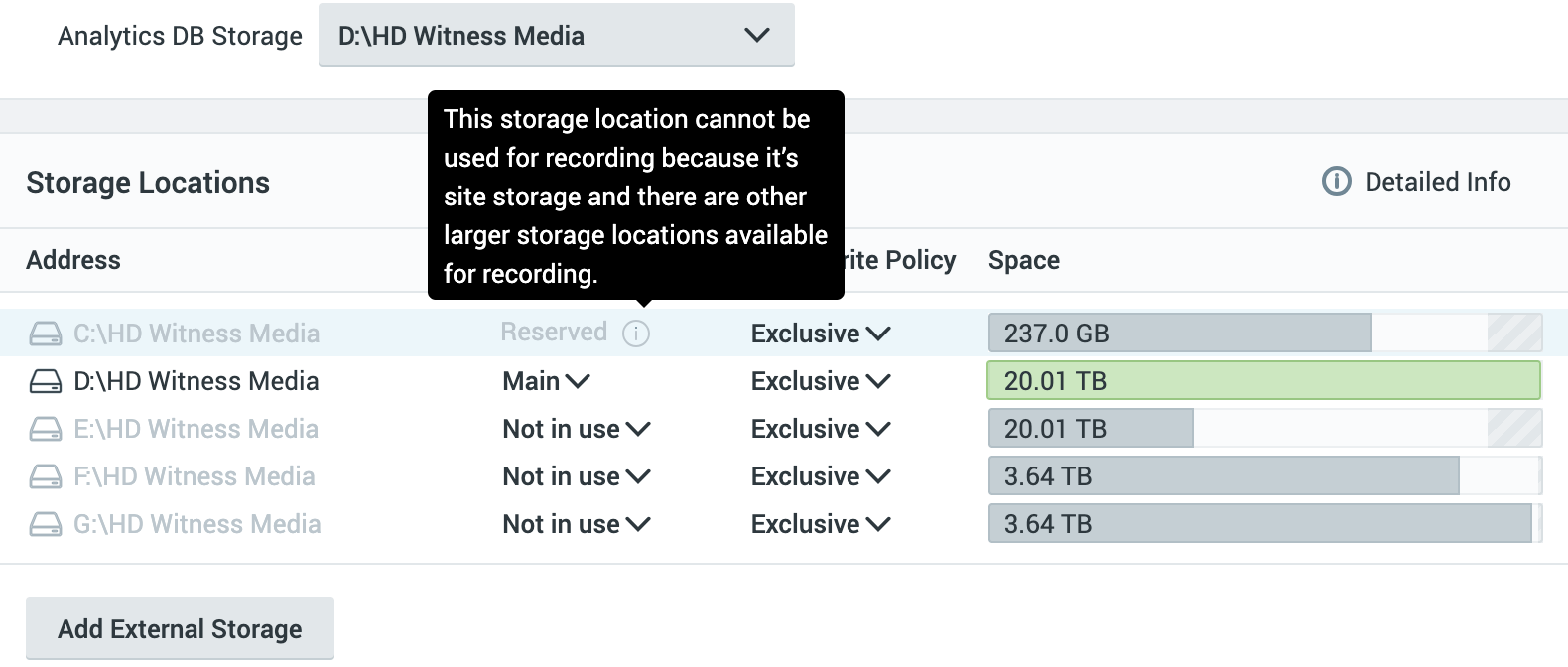
My C:\ drive is my system drive and the only SSD. I want to use it for the Analytics DB Storage but I'm unable to due to it being Reserved.
Can I please get assistance with overriding the Reserved status so I can use my SSD for Analytics DB Storage?
Thanks!
-

Hi Vu Nguyen ,
You don’t need to change the Reserved status to do this. Reserved only means the server won’t record video to C:, because it’s the Windows system drive. You can still store analytics data on it.
- Open Server Settings > Storage Management.
- On the C:\HD Witness Media row, click “Use to store analytics and motion data.” The row is grayed out because the drive is reserved for recording, but you can still select this option.
- Save the change.
Note: We don’t recommend storing the analytics database on the operating system drive. The database writes to the drive constantly, which adds wear to the drive you operating system runs on. The database also has no size limit, so it can fill the drive. Either of these can affect the reliability and stability of the server. For the best results, install a dedicated SSD or NVMe drive for analytics data, and then select that drive in step 2 instead.
If you decide to use C:\ anyway, keep an eye on its free space. If you see warnings about low disk space on C:, move the analytics data back to a dedicated drive.
Best regards.
0 -
Thanks so much for the assistance Norman! I've followed the instructions and now my C:\ drive is now used for analytics DB storage.
Understood about the recommendation to not use the operating system drive. I'll look at getting a dedicated SSD soon.
0
Post is closed for comments.
Comments
2 comments