Camera added successfully in CMS but does not show up in Resources list
Answered
Hi there,
Hope somebody can advise how to troubleshoot this issue:
NX NVR ("Train1") + 2 ACTi cameras were connected to NX CMS and Live was OK.
Due to IP address changes, I had to re-add NVR and Cameras.
Steps taken:
- reset NVR to factory default, connect to Existing System same CMS
- scan and add cameras (new IPs) in NVR ok, Live view OK
- scan and add cameras in CMS ok, received successful message, but cameras did not show up in Resources menu and no Live view - NG
troubleshooting so far:
- try to scan and add cameras again, but CMS reporting that cameras are already added and add button greyed out (screenshot attached)
- remove old listing with old IPs of these cameras from CMS, just in case if conflicting
- disconnect NVR from the system, factory reset and repeat above steps
Note: Old NVR is still listed in the CMS Resources list, and only IP being updated after connecting it after factory reset. Not sure if it supposed to show up as a new Server or just update old listing. However, unable to remove old NVR record from the Resources list.
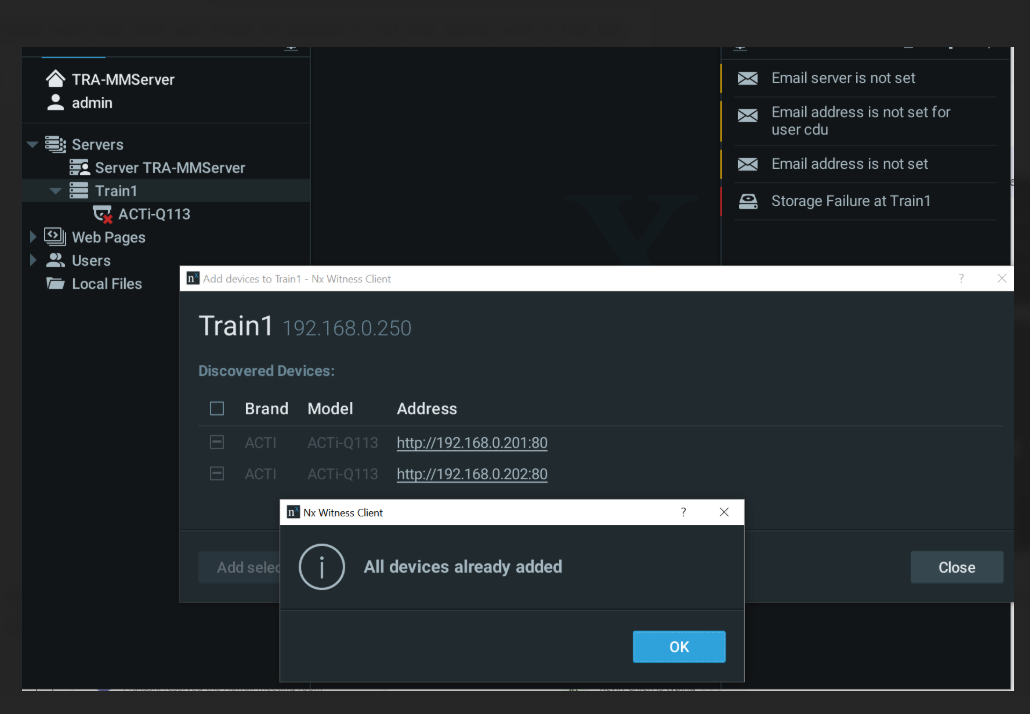
-

Hi @...,
From your screenshot, it seems that this server still stays on the old software version. May I know which version of Nx Witness are you running now?
Could you please update the software to the latest 4.2 version and check if the problem happens again?Thank you.
0 -
Hey Wendy,
Thanks for reply. It's the old version, 3.2.x I believe.
I wish to update, but I have to stick with old version due to legacy environment. Old NX NVRs won't be able to connect to updated 4.x CMS... :(
I wonder if you have any procedure to reset the database for CMS backend or clear the cache? or anything similar. Since I can't remove old NVR from UI manually.
Thanks,
Artur
0 -
Hi Wendy,
You may ignore my last comment.
Fix was to factory reset the CMS and add NVR again
You may close this ticket (if applicable)
0 -
Hi @...,
Sorry for my delayed response but happy to know you figure it out.
Feel free to add the post if you need further assistance.
Thank you.
0
Please sign in to leave a comment.
Comments
4 comments