Cameras offline : Cannot connect to port 80
Completed
My security system runs on the Nx Witness software on an Apple Mac Studio. The server is an AVMS11-Optix. Four HIKVISION cameras are connected to the server via a TP-Link PoE switch.
Nx Witness Client version 6.1.1.42624 (abe49318533b).
Built for macosx-x64 with clang.
RHI backend: Metal.
RHI device: Apple M1 Max.
RHI device ID: 0.
RHI vendor ID: 0.
RHI max texture size: 16384.
Platform: cocoa.
Server VMS11-Optix (172.16.0.29): v6.1.1.42624
Recently, I updated the Nx Witness software. I had no issues with the update process. However, all four of the cameras are now offline.
The diagnostics confirm that the server is available and that all four of the cameras are accessible. In each case, “Camera Diagnostics” reports:
Confirming server availability.
OK
Confirming camera is accessible.
FAILED: Cannot connect to http port 80. Make sure the camera is plugged into the network. Try to reboot the camera.
Diagnostics complete
I have confirmed that each camera is securely connected to the TP-Link switch and that the cable between the switch and the server is secure and functioning.
The cable from the server is routed to a wall socket. The cable from that socket is plugged into my Orbi wireless router. The router is connected to a Huawei broadband modem. I have replaced the CAT 6 cables between the socket and the Orbi router and between the Orbi router and the Huawei modem.
I have restarted the TP-Link switch (to reboot the cameras), the server and the computer several times.
This situation is covered by the online NX Witness User Manual. It advises that if the instructions to resolve the issue (as above) are unsuccessful, I should contact Support.
This is a screenshot of the Camera List.
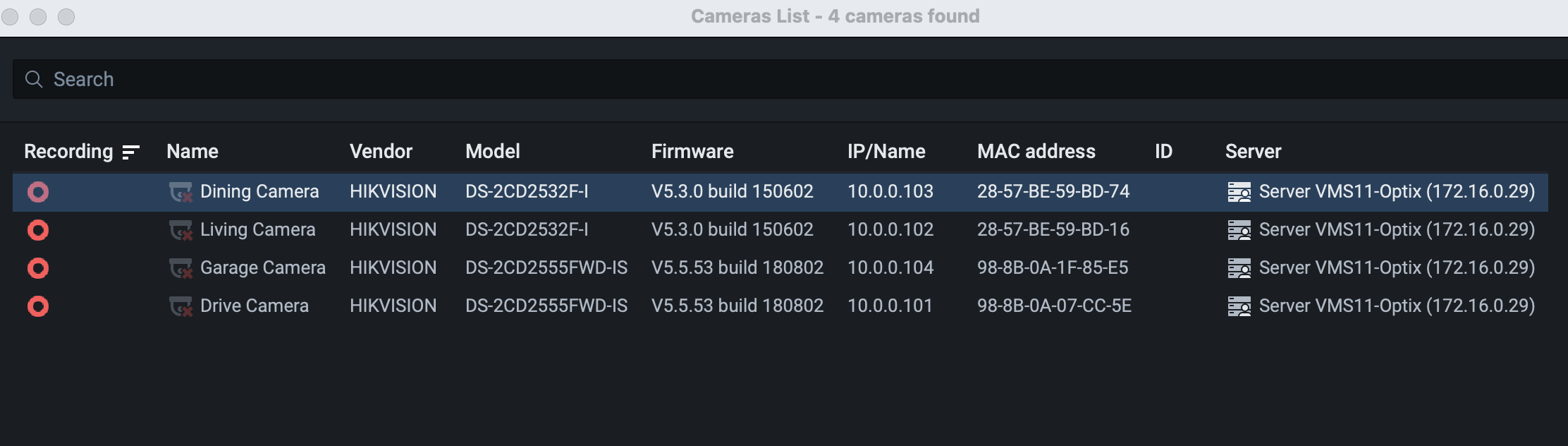
I cannot directly access any of the cameras at the URLs given from my Mac.
__________
I cannot access the Optix server at 172.16.0.29, either directly or via HTTP or HTTPS. (The Optix server has changed from 10.0.0.35 : 7001.)
I suspect that the Huawei modem has changed the URLs for the Orbi router and the Optix server. The modem’s installation post-dates the security system setup. I can access the Huawei modem.
_________
There is a router access problem that may be merely coincidental but possibly relevant, if only to explain what I can and cannot see. I previously accessed the Orbi router using the default IP address 10.0.0.1, but now Safari “cannot connect to the server”. I have tried WiFi and Ethernet separately. The router's address in Network Settings is 172.16.0.1, but Safari cannot access it via that URL.
________
As I see it, the essential problem is communication between the cameras and the Optix server.
Might this have resulted from the recent NX software update, perhaps incompatibility with the camera firmware?
I assume that the camera interface can be accessed on the server and the port settings can be changed if necessary. If so, how can I access the interface?
Is the change to the server URL significant?
______
In summary: The Optix server is reachable at 172.16.0.29 (by NX Witness but not via Safari), the cameras remain defined at 10.0.0.101-104. Nx diagnostics report failure connecting to HTTP port 80 on all cameras. There is no apparent cabling/connection issue.
-

Hi Gary MacAskill,
The core problem is a subnet mismatch triggered by adding the Huawei modem.Your network moved to a
172.16.0.xrange, but your four cameras are still assigned static IP addresses on the old10.0.0.xrange. Because they are on completely different subnets, the Nx Witness server, which likely was set to DHCP, cannot reach them on HTTP port 80. The software update was just a coincidence, the required software reboot simply broke the cached connection.1. Revert the Network Subnet
Change your main router/modem’s LAN settings back to the
10.0.0.xIP range (Gateway:10.0.0.1).Once you save this and reboot your network devices, the server and router will return to the
10.0.0.xsubnet. The cameras will immediately start communicating again with no re-configuration needed. However, not all modem/routers allow this change.2. Change the subnet for the Cameras
- Use a camera discovery tool (like Hikvision SADP) to locate the cameras on the network.
- Re-assign static IP addresses to all four cameras so they sit on the
172.16.0.xrange (e.g.,172.16.0.101through.104). - Update the IP address fields for each camera inside the Nx Witness settings to match their new IPs.
If possible, if you can set the cameras to DHCP, and such case happens again in the future, simply rebooting should suffice to change the IP addresses of the cameras.
Best regards.
0
Post is closed for comments.
Comments
1 comment