Linux - NX Desktop Client Scaling on TV's
Answered
Hi,
I am still learning Linux, i have a test machine running Linux Ubuntu 20.04. The machine is an i5 10500, with a Quadro P620.
I am trying to see how the NX Desktop client behaves when TV's are plugged in, to see if i can use this type of hardware as a "viewer" (NVV rather than an NVR)
i have tried various combinations, (1 tv, no monitor etc, or all 3 TV's + a monitor) no matter what i try when i drag the NX Desktop client into one of the displays the scaling goes a bit crazy and the font is gigantic.
it keeps showing across multiple screens rather than 1, even when 1 TV and no other displays are plugged in.
Curious if its something to do with NX Witness software detecting the resolution when initially installed? (as i installed it when a lower res monitor was plugged in)
Any other Linux windows / software shows normally, but NX witness blows up too large.
See Screenshot:
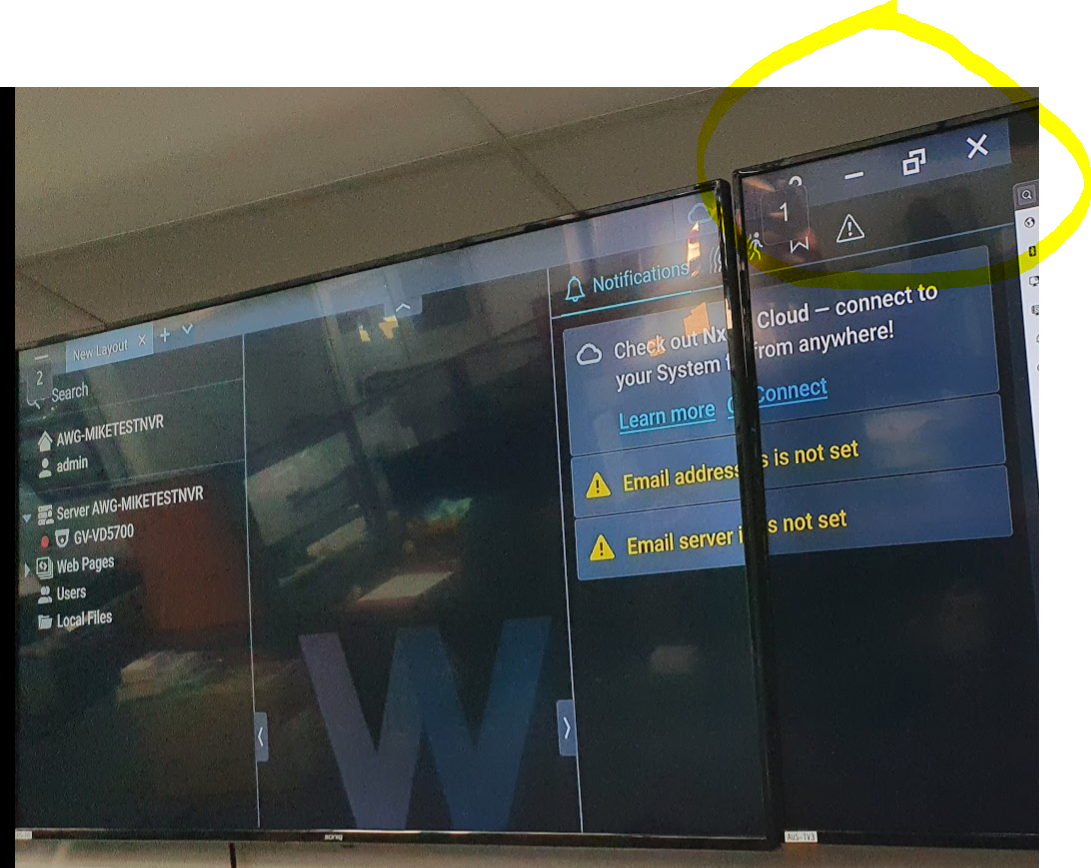
I have NX Desktop client on the left TV, but it displays parts of it on the 2nd TV to the right.
Even if i restart the device with only 1 TV, it still does this.
Unsure if Linux can even support displaying like this, even with a P620 Quadro with drivers installed.
Sorry..my Linux abilities are lacking.
Heres the rest of the right TV, that shows the linux settings menu looking normal:
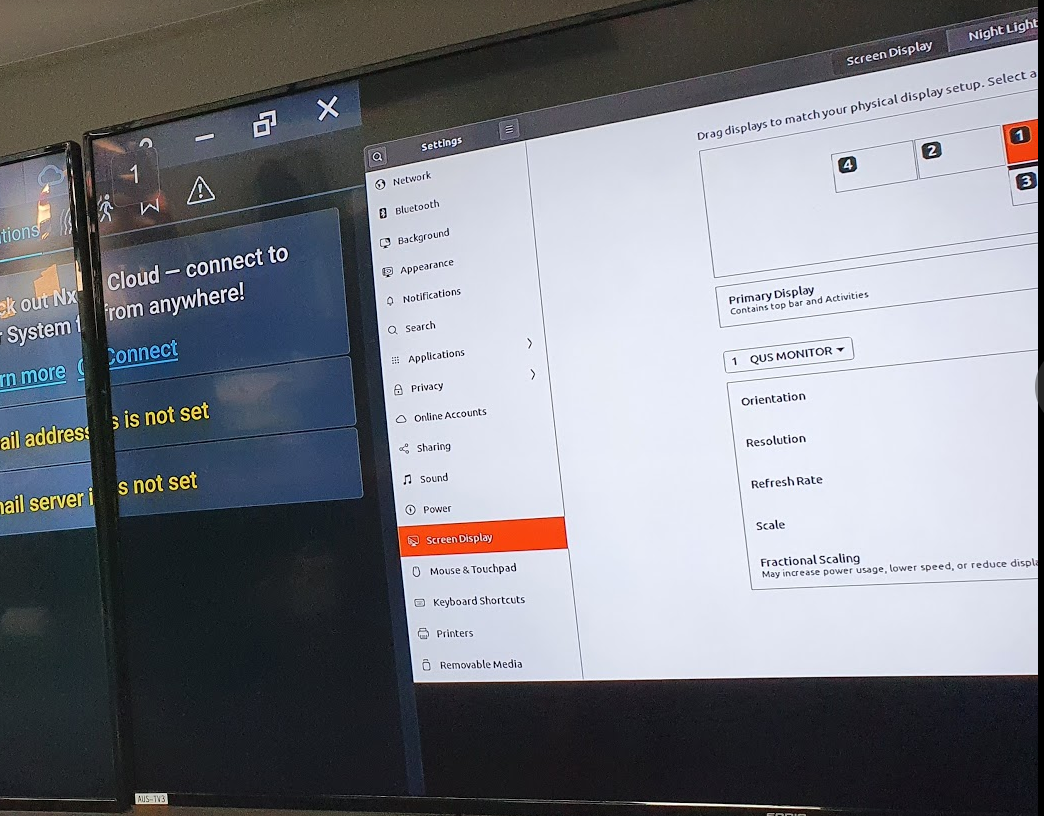
-

Hi @...,
This is a known issue with the auto-scaling of QT based applications in Ubuntu. Nx Witness, but also KeepassXC and VirtualBox have or had these issues with Ubuntu in combination with HiDpi screens. Also, it happens that the monitors don't provide the right information to the OS (If I recall it correctly my display was recognized as 7" display, while it was 42").
I have encountered this issue years ago, so I have to dig deep in my brains, but if I recall it correctly, you should change the ~/.profile file.- Open the terminal (Ctrl+Alt+T)
- Enter the following command:
sudo nano ~/.profile
- Go the bottom of the file and add the following commands:
export QT_AUTO_SCREEN_SCALE_FACTOR=0

export QT_FONT_DPI=120 - Save the changes with Ctrl+O
- Close the file with Ctrl+X
- Reboot your system and check again.
If this didn't resolve the issue, changing the values might help.
If it doesn't help at all, just remove the lines from the ~/.profile file and you should be back to 'normal'.1 -
Hi Norman,
It worked!
You're a legend - i did see a lot of complaints online with Ubuntu and HiDPI displays but could not really find anything that worked.
You're a legend, thank you for your help again.
Regards,
Michael Carbone
0 -
Glad to see this resolved the issue, @....
Do you mind if I use your image in one of our support articles?
1 -
That's fine.
0
Please sign in to leave a comment.
Comments
4 comments