Orlaco camera integration (how to use "Add Device")
Answered
May I know what kind of information should be put to "Add Device" for Orlaco camera (EMOS) integration?
Current stream settings of the camera is following:
- RTP/AVP
- H.264
- Broadcast
Now VLC can show the streaming from the camera with the SDP.
m=video 50004 RTP/AVP 96
c=IN IP4 0.0.0.0
a=rtpmap:96 H264/90000
-
Official comment

Hi @...,
If I'm not mistaken, Orlaco cameras aren't Onvif compliant, this means you either add them as an RTSP stream or HTTP stream.
What model number does it concern? -
Hi Norman,
Thank you for the reply.
You are right. The camera does not support ONVIF, so manual integration is needed. A model of the camera is Orlaco EMOS 120 (https://www.orlaco.com/article/orlaco-emos-ethernet-camera-120o) which supports RTP stream.

Could you kindly tell me how to connect w MJPEG and H.264?
Regards,
Kei
0 -
Hi @...,
Since Orlaco has it's HQ in my country I reached to them for this question and I'll let you know as soon as I know more.
0 -
Hi Norman,
Thanks!
Let me wait for further information from you.
0 -
Hi Normal,
May I know current situation of the investigation w Orlaco?
At my understanding, to integrate with non-ONVIF camera, it needs to put an address here. So could you kindly tell me any example to establish a connection with RTP (H.264, MJEPG)? I will try it again.
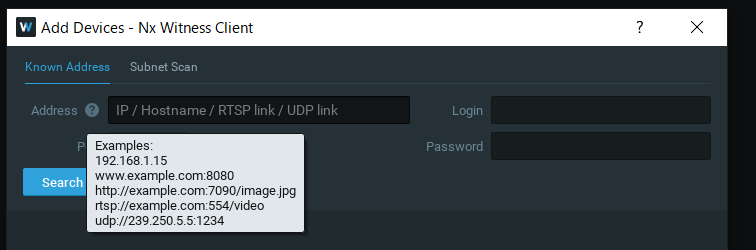
In addition to, if Nx Witness cannot support to integrate w Orlaco camera in nature, can we develop plug-in (protocol converter) for Nx Witness to support such camera by ourselves?
0 -
Hi @...,
Yesterday I got the comment that they don't know what URL they use for the RTSP stream and they are awaiting for their developers.
You might be able to find the URL yourself with a program called Wireshark. Most cameras will broadcast the RTSP URL when broadcasting.
- Open the camera in the web browser or the applicable software that came with the device.
- Open Wireshark.
- Click once on the applicable network interface, if you have the option between a wireless and wired interface, select the wired interface.
- Enter host <camera-ip-address> in the capture filter box and hit enter. For example; host 192.168.178.35
Wireshark should start capturing the packages between the camera and the software or web browser on your computer. - Add RTSP to the display filter.
- Stop the Wireshark capture by clicking on the red square in the top left corner when RTSP packets appear.
- Right-click on a RTSP package and click on Follow ⇾ TCP Stream and check the window that opened for the RTSP stream that has been used.
This won't be able for all cameras, since some use other techniques to stream in a browser or applicable software, but for many cameras this is a method to find the RTSP URL format.
0 -
Hi Norman,
Thank you very much for prompt reply. The answer is really helpful for me to proceed the investigation. Let me try along your advice!
0 -
That what we are here for @....
Always happy to support anyone if we can.Please let me know the results, so we can update Orlaco as well in case you found it.
0 -
Hi Norman,
It looks no captured packet of RTSP. I have configured that the Orlaco broadcasts MJPEG packet on the network. Could you kindly check the result?

For your reference, let me upload the file which has captured packets.
https://addca.box.com/s/k0p9motfwz19i12ahwp2fkbikerqbl12
To establish communication btw Orlaco and VLC, following sdp file is used.
m=video 50004 RTP/AVP 26
c=IN IP4 0.0.0.00 -
HI @...,
I got the feedback from Orlaco and it seems they use a non-standard approch which prohibits the camera from being able to connect to a VMS. Only their own solutions and VLC player are capable to stream their protocol.
Pity we can't make it work.
0 -
Hi Norman,
Thank you very much for supporting us.
Okay, let us think of counter measure against it, for example, seeking for another camera, etc.
Regards,
Kei
0
Please sign in to leave a comment.
Comments
11 comments