Dahua IPC-HDW4631EM-ASE2
Answered
Hi,
Looking to enable video analytics on Dahua IPC-HDW4631EM-ASE2, I am currently running free trial version.
I am having issues with the facial recognition that has been enabled on my Dahua camera connected straight into my network.
In the live feed from the direct camera IP it is getting acknowledged, looking to integrate this video analytics into nx witness. I have seen I might need a plug in but don't have access to this in my camera settings menu through nx witness.
Any help would be appreciated.
-
Official comment

Hi Daniel,
Please check the following video about how to setup the in-camera analytics in the Nx Witness rules engine.
-
Hi Norman,
I have been through a lot of the tutorials and haven’t had much luck.
I have enabled face detect and receiving this in the event log in the camera.
When I go into nx witness I choose the “camera rules“ option then “add” event which is fine.
However once I select “analytics event” and try to select the camera the camera is not there unless I go to all cameras which it is in a red font.
I’m not sure if I need to add a plug-in to that camera or something.
Bit confused and doesn’t help with me being new to the system.
Thank you
0 -
Hi Daniel,
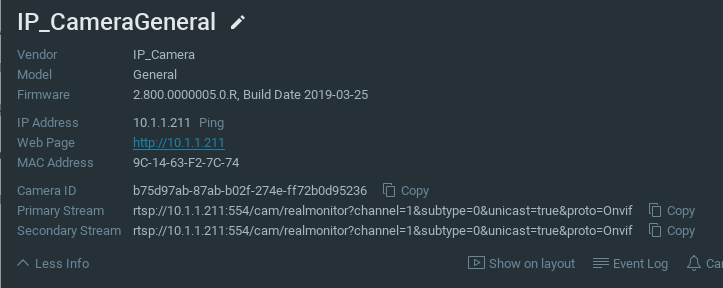
Can you tell me how the cameras are recognized in the camera settings when you look at the Vendor and Model?
Maybe you can share a screenshot of that menu?0 -
 0
0 -
Hi Daniel,
That is what I guessed. You don't have a Dahua IPC-HDW4631EM-ASE2, but an OEM.
The analytics are bound to the Vendor/Model name and therefore the Dahua analytics don't work for IP_Camera General.We can make the Dahua analytics work for their OEMs but we need a more unique identifier than IP_Camera General since there are more brands using these identifiers and that would break compatibility if we use these identifiers.
For now, I made a file that will work for a while but eventually will break due to system synchronization updates.
You can download the file through this Google Drive Link.Please follow the steps as described below to use the in-camera analytics:
-
Remove the camera from the system
-
Stop the mediaserver application and paste the resource_data.json file in the Google Drive Link at the following location:
For Windows: C:\Program Files\Network Optix\Nx Witness\MediaServer
For Linux: /opt/networkoptix/mediaserver/bin/ -
Now start the mediaserver application again.
-
Add the camera again
To stop and start the media server, please do it as follow:
For Windows: Open the task manager, select tab ‘Services’ find the mediaserver application, right-click and select; Stop or Start
For Linux: Open the terminal (Ctrl+Alt+T) and enter the following command; sudo service networkoptix-mediaserver stop or sudo service networkoptix-mediaserver start.
After this, the in-camera analytics should be available.
0 -
-
Thanks Norman,
The vendor changed to Dahua, and was able to choose the analytics event but would not let me choose the type. I trialled this with no event type but didn’t seem to be getting any notifications/bookmarks.
Maybe I just get a dahua one tomorrow and hopefully will work fine.
Really appreciate your time though!!
0 -
Hi Daniel,
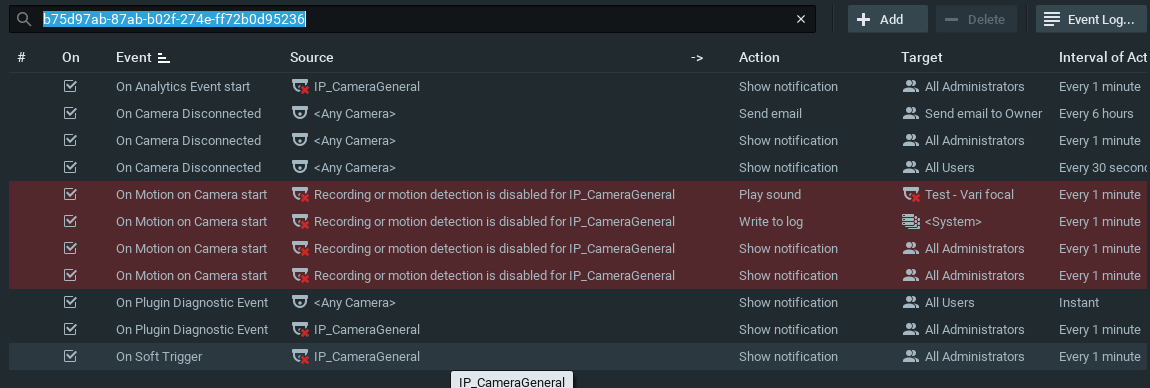
Can you share a screenrecording of the rules engine setup?
0 -
Hi Norman,
I think this is the area if you are after if not could you direct me in the right place. Please disregard the camera as showing offline at the moment as i have disconnected it briefly.
Thank you
 0
0 -
Hi Norman,
All working now, on the Notification section once the face has been detected it is coming up no data after awhile is this normal or should it hold that screen capture.
Very happy the face detect is working now!! Thank you
0 -
Thanks for the feedback, Daniel.
Please beware that the fix I shared will void over time. So it could be that in a few days or weeks the integration will break.
The required permanent solution is a unique name for vendor and model in the firmware of the cameras. In that way, we can add the integration to our core software.0
Please sign in to leave a comment.
Comments
10 comments