Nx Witness Integration with BeoLiving Intelligence
Answered
I am new to this forum and would like to ask for some help with integrating my 4 security cameras to my BeoLiving Intelligence (BLI) Home Automation device.
BLI is manufacture by Bang & Olufsen in partnership with Khimo. It allows integration with IP security cameras directly, but I am not sure how to configure it if the security cameras are connected to my NxWitness based server. Is there a way to still integrate it?
The BLI requests the following parameters for camera access
1. IP Address
2. HTTP port
3. RSTP port
4. Username (presumably my admin username?)
5. Password (presumably my admin password?)
With regards to the IP address, I am uncertain whether I should enter the NxWitness server IP address or if I should enter the IP address of the cameras assigned by the NxWitness server.
Any useful advise would be greatly appreciated. Thanks a lot!
-
Official comment

Hi Joshua,
It should be quite easy to do.
You can choose if you want to add the camera directly to the BLI system, or that you add the stream from the server.
In the first case, there is a risk that both Nx Witness push their profile to the camera and the BLI system does the same.
Also, many cameras do not have sufficient hardware resource to stream to 2 different servers and frames start to drop or the camera will freeze.Therefore in most cases, people chose to stream directly from the server.
There are various way to achieve this:Via HTTP:
http://<server-IP-address>:7001/media/<cameraId>.<format>
Via RTSP:rtsp://<server-IP-address>:7001/<cameraId>
More details can be found in the Server API documentation which you can find in our WebAdmin.
Here you can read and watch how to access this documentation.If you select the "API Testing Tool (new) - interactive documentation and tools for testing API calls" and look for RTSP Streaming or HTTP Streaming you will find all possible parameters.
If you have any specific questions, feel free to ask them here. -
Hi Norman,
Thanks a lot for your prompt reply and input.
I am still having difficulties obtaining camera access through my BeoLiving Intelligence. I am using the following settings without success and would appreciate if you could please provide input.
1. IP Address: my Nx Witness Server IP address (i.e. 192.168.x.x)
2. HTTP port: 7001
3. RSTP port: 7001
4. Username: admin
5. Password: admin password
6. RTSP stream: cameraID as per tutorial through API. I have tried both with and without {}
It appears that I do not have the settings correct as the BLI is reporting an error.
0 -
Hi Joshua,
The URLs should look like:
http://192.168.x.x:7001/33f15ac2-9725-7b53-7a21-6e58518e6
or
rtsp://192.168.x.x:7001/33f15ac2-9725-7b53-7a21-6e58518e6If the RTSP port is required in your application, I would add 554 which is the default port for streams in Nx (and many other applications that pulls streams from the camera)
0 -
Hi Norman,
Thanks again for your help. Unfortunately, I have had no success with a connection between my NxWitness Server and BLI.
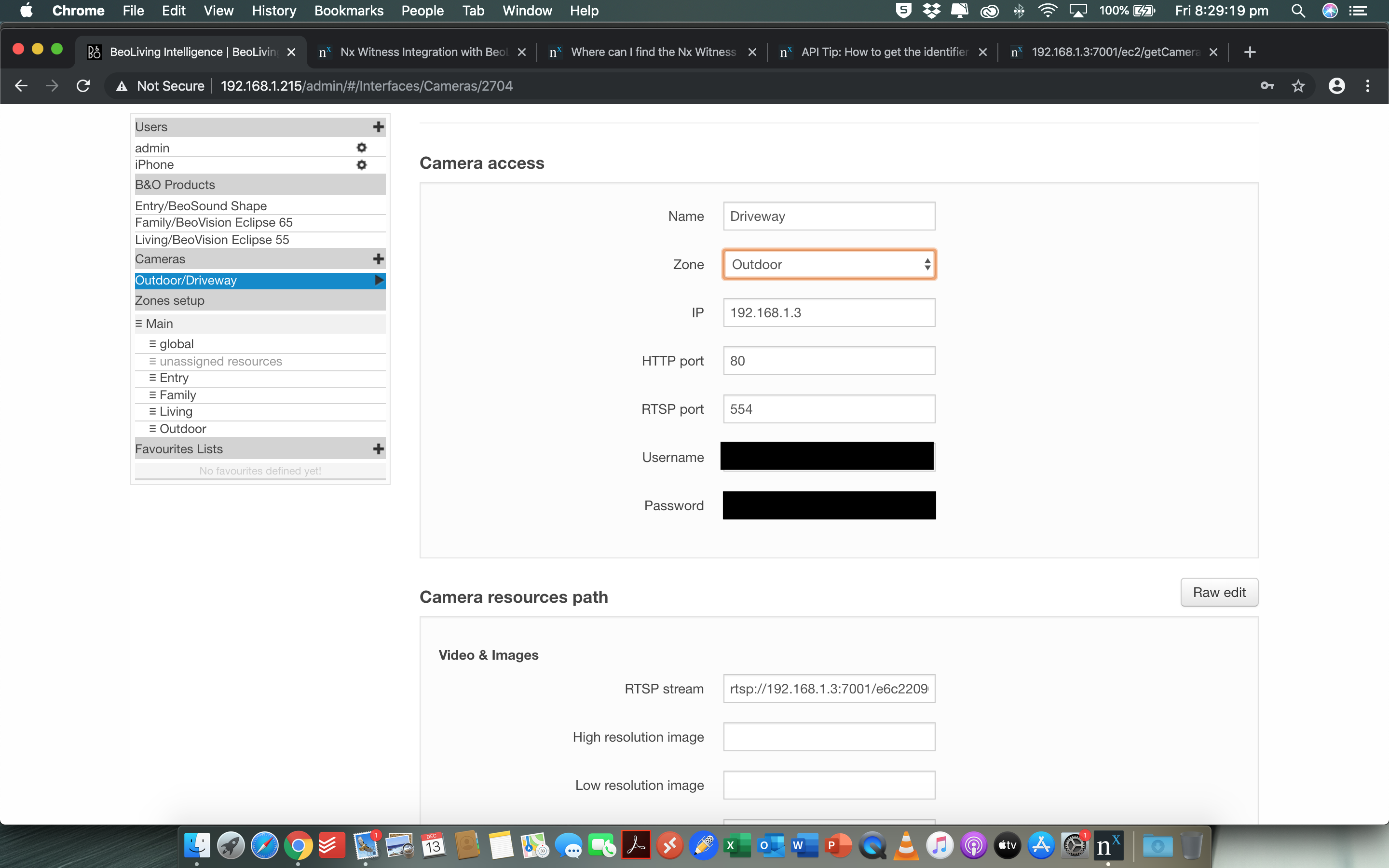
I've enclosed a screenshot for your to review and if you have any thoughts on what else to try; I'd be happy to attempt.
If there are no other ideas you may have, can you please also advise as I will then need to contact Khimo/Bang & Olfusen for further support. They have suggested initially that it would be better to bypass the NxWitness server if possible, but that may mean other problems if I do as discussed above. Would this be worth trying anyway? If so, can you also please suggest settings in how I can approach this?
Kind regards,
Josh
 0
0 -
Hi Josh,
I assume that 192.168.1.3 is the IP address of the server? It might be necessary to add RTSP:// to the IP address.
I would change the HTTP port to 7001. Nx does not use port 80.But I do not know where they use the server/camera IP address for. when the URLs are already added to the Camera Resources Path.
If this could be clarified, it would help to come to a resolution.
The URLs for the screenshots are as follow:
High-resolution image:
http://192.168.1.3:7001/ec2/cameraThumbnail?cameraId=<cameraId>
Low-resolution image:
http://192.168.1.3:7001/ec2/cameraThumbnail?cameraId=<cameraId>&height=640&width=480
The height and width of the image can be changed, but I would recommend honoring the aspect ratio of the camera to avoid weird images.
0 -
Hi Josh,
I was just wondering if you succeeded or not?
0 -
Hi Norman,
I apologise for the delayed reply as I've been trying to test for stability.
I have been able to successfully connect to one camera without problems. I have had to contact Khimo/Bang & Olfusen for further regarding settings input. Once I add more than one camera, an error on the iPhone BeoLiving Intelligence GUI displays "error connecting to camera". I have checked all IDs and this should be correct. I wonder whether this is a further problem on the BLI firmware and I will contact them again to discuss.
My settings that seem to work with one camera are as follows:
Name = Name of Camera to be displayed on the GUI
IP = Nx Witness Server IP address
HTTP = 7001
RTSP = 7001
User = Username with admin privileges
Password = Username password
RTSP Stream = /<cameraid>
High resolution image = /ec2/cameraThumbnail?cameraId=<cameraid>
Low resolution image = /ec2/cameraThumbnail?cameraId=<cameraid>&height=640&width=480
0 -
Hi Joshua,
You could check where it goes wrong with the help of Wireshark. In the capture file, you should be able to see which requests and answers are sent between the BeoLiving Intelligence (BLI) Home Automation device and the Nx Witness VMS and vice versa.
0 -
Hi Joshua Yee
Did you resolve it already?
0
Please sign in to leave a comment.
Comments
9 comments