Cameras rotation in one CELL of the LAYOUT
Completed
Hi,
Is it possible to create a rotation of selected cameras in one cell of the LAYOUT or VIDEOWALL ?
Thank you
-

There are several ways to rotate an item in a layout. A red directional arrow will indicate that the item is in rotation mode.
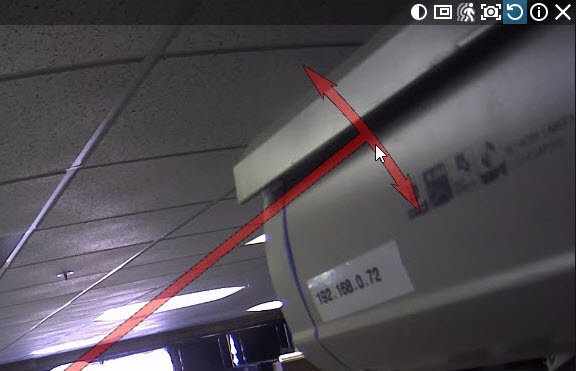
•Press Alt + click-and-drag over an item. Release when the item is at the desired angle. You can use Ctrl + Alt + click-and-drag to limit rotation to increments of 30 degrees.
•Click and hold the Rotate button (), then use the mouse to rotate the item. Release when finished. Press Ctrl while holding the Rotate button to limit rotation to increments of 30 degrees.
•It is also possible to use Rotate to in the item's context menu to choose from the options 0, 90, 180 or 270 degrees.
0 -
Thank you for your answer. Under the rotation I meant camera switching in one cell...
... camera 1 (5 seconds) -> camera 2 (5 seconds) -> camera 3 (5 seconds) -> camera 1 (5 seconds) -> ...
0 -
Thank you for the clarification, Michal.
Unfortunately, you can't create a tour in a single cell.
You could create a showreel with different layouts where you change a single camera in the layout and then add the layouts to a showreel and run the showreel.
0 -
That is what I did exactly :) Unfortunately there is some "transition" between switching of the showreal items. Can I turn off that transition ?
0 -
Hi Michal,
Awesome. Unfortunately, the transition you mention is a characteristic of the showreel.
I would encourage you to share your desire to create tours in a single cell in our New Features Ideas section of this community so our product management will be aware of this request.
0
Post is closed for comments.
Comments
5 comments